Online Course Automation for WordPress: LearnDash, LifterLMS, Tutor LMS and LearnPress
Welcome students, enroll buyers, celebrate completions, coach after quizzes and bring back students who stall — six course automations and the plan each needs.
4 min read
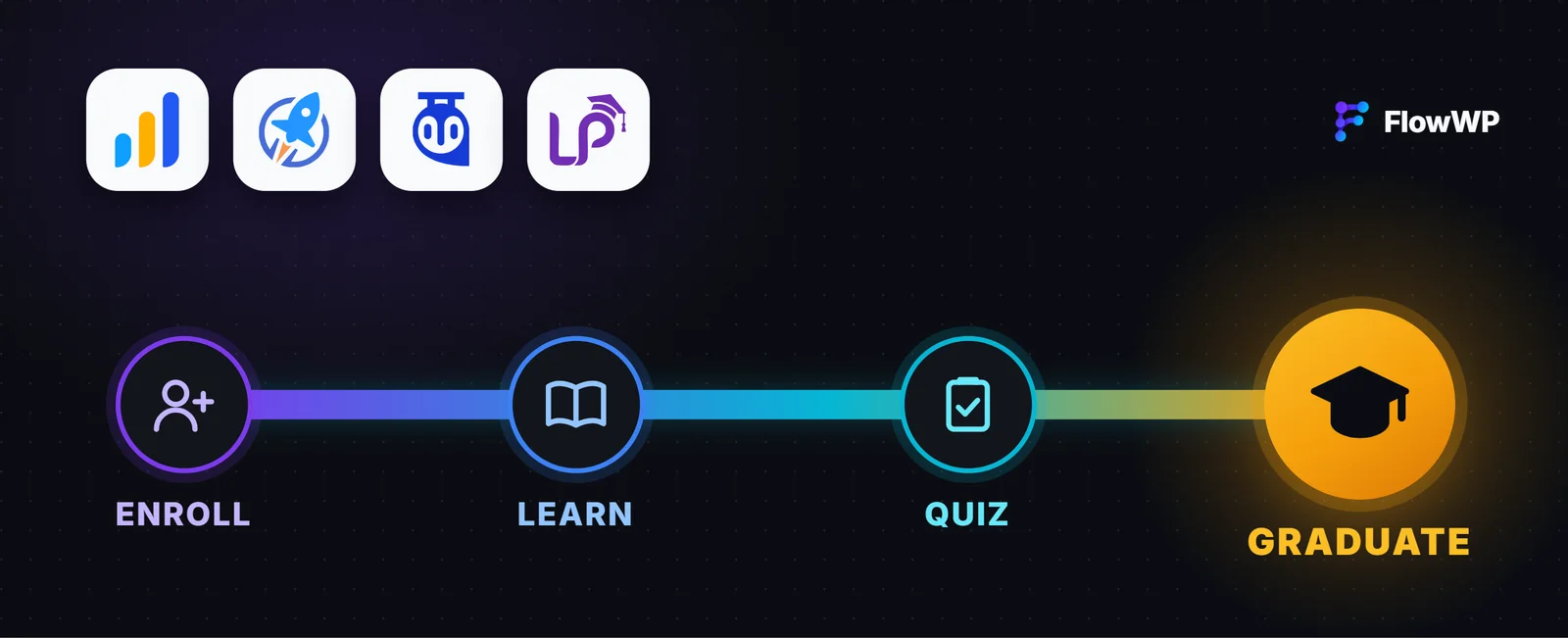
An online course is a series of moments: someone buys or enrolls, works through lessons, takes a quiz, finishes — or stalls halfway and never comes back. Each moment is a chance to welcome, encourage or nudge a student, and each one is an event your LMS plugin already knows about. That makes them things a workflow can respond to. This guide covers six course automations for WordPress, with the LMS plugins and the plan each one needs.
Which LMS plugins work, and on which plan
FlowWP has triggers and actions for LearnDash, LifterLMS, Tutor LMS and LearnPress, and adds them when the plugin is active on your site.
- On every plan, Free included: a student enrolls in, or completes, a LifterLMS or LearnPress course.
- From Personal: enrollment and course and lesson completion for LearnDash and Tutor LMS, lesson completion for LifterLMS and LearnPress, and the actions that enroll a student in a course on all four.
- From Business: quiz results, progress checks, memberships, certificates and achievements, and LearnDash groups, assignments and essays.
Each integration page lists every step with the plan that includes it.
1. Welcome students the moment they enroll
A student enrolls → send a welcome with a link to the course. The first email sets the tone, and it is the easiest one to automate. Welcome new LifterLMS students sends a friendly email with a link to the course as soon as someone enrolls, including enrollments that come with a membership. Add your own touches — what to expect, where to ask questions, how long the course takes.
2. Enroll buyers automatically
A product is purchased → enroll the buyer in the course. If you sell courses through WooCommerce, the purchase can do the enrolling. Enroll customers in a course when they buy it enrolls the customer in a Tutor LMS course when they buy the product you choose; the customer needs an account on the site. Each of the four LMS plugins has an Enroll a user action, so the same pattern works with any of them. Tutor LMS enrolls a student in a paid course as pending until it is paid for, and LearnPress enrolls through a completed order, as when an administrator enrolls someone.
3. Celebrate when they finish
A student completes a course → congratulate them. Congratulate students who finish a course (Tutor LMS) and Congratulate LearnPress students who finish a course send an email the moment a student finishes — LearnPress’s includes their result.
A finish is also the best moment to suggest what comes next. Celebrate LifterLMS course completions awards GamiPress points, posts a shout-out on the BuddyPress activity stream and sends a congratulations email — then, three days later, a suggestion of what to learn next (Business).
4. Coach students after a quiz
A quiz is finished → passed, nearly passed or struggling? → respond to each. Quiz triggers (Business) can run only for passes or only for fails, and on LearnDash, LearnPress and LifterLMS also above or below a score. Coach students after every LearnPress quiz uses two If / Else steps: a pass earns GamiPress points and a well done, a near miss gets encouragement to retry, and a low score alerts the instructor and sends the student back to the lessons. Encourage students who fail a quiz is the simple version for Tutor LMS: a kind note with their score and a nudge to try again.
5. Re-engage students who stall
A student enrolls → wait a week → check their progress → nudge. Most students who drop out simply stop. Re-engage Tutor LMS students who stall waits seven days after enrollment, gets the student’s progress, then uses a Switch: finishers are congratulated, students who have not started get a nudge, and everyone in between is encouraged with their percentage (Business). The wait is a Delay step that runs in the background through Action Scheduler, so a student who is waiting holds nothing open on your server.
6. Keep your student list in your CRM
A student enrolls → add them to your CRM with the course as a tag. With FluentCRM, an Add tags to a FluentCRM contact step after any enrollment trigger builds a list of students per course, ready for announcements about the next one (Personal). The same works with Mailchimp, Groundhogg and MailPoet; see How to send automated emails in WordPress for where emails end and your email tool begins.
Things to know
- Removing a student and their progress. Removing a student from a LearnDash, Tutor LMS or LifterLMS course keeps their progress. Removing them from a LearnPress course deletes it, and the step says so.
- Emails go through your site. Send Email uses WordPress’ own mailer, so set up an SMTP or transactional email plugin first if your site’s emails land in spam.
- Test before you go live. Test run tries the workflow with example data; emails and enrollments are rehearsed rather than done, so no student hears from a test.
For a wider view of what to automate on a course site, see WordPress LMS automation for online courses, or browse the course templates in the template library.