WordPress Editorial Workflow: Automate Review, Approval and Publishing
Tell editors when a post is ready for review, tell authors what happened to it, and share it when it goes live — built on WordPress’ own post statuses.
4 min read
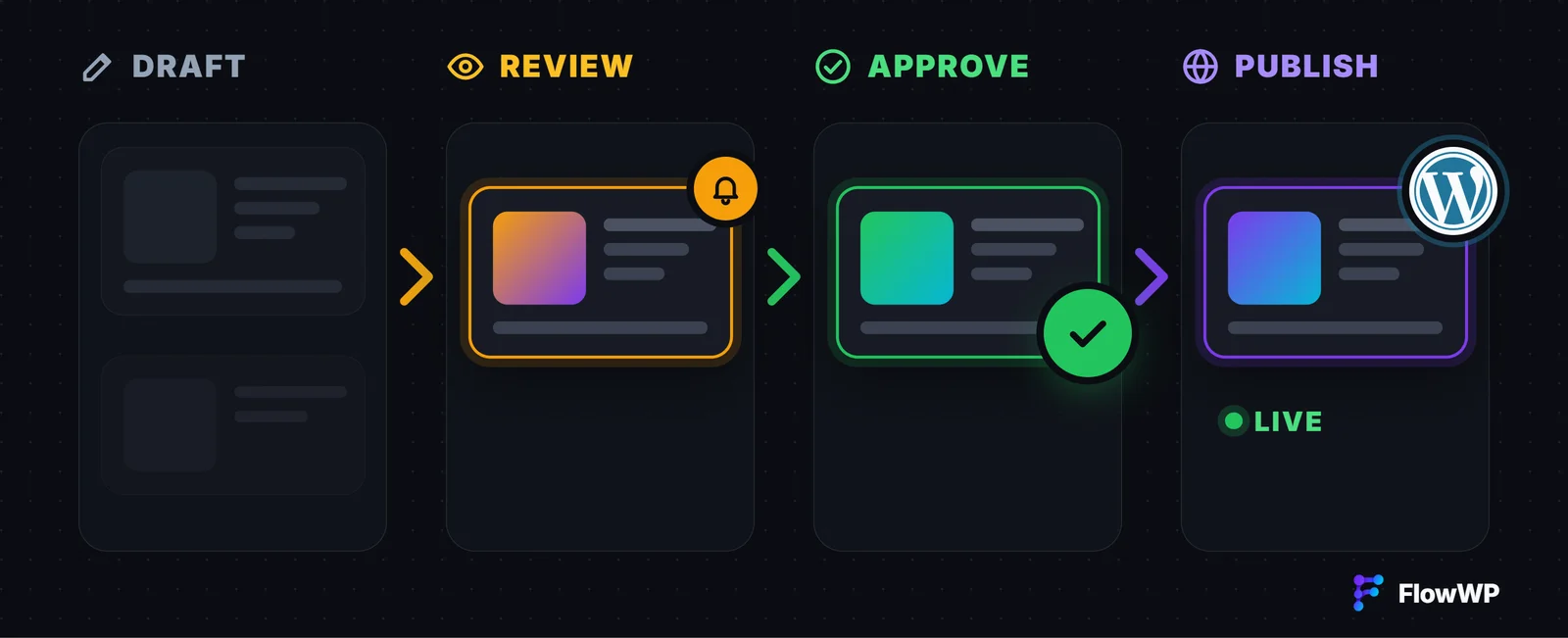
Every site with more than one writer has an editorial workflow, even if nobody wrote it down. A contributor finishes a draft and submits it for review; an editor reads it, sends it back or schedules it; it goes live; somebody tells the team and shares it. WordPress already has the statuses for this — Draft, Pending Review, Scheduled, Published — but it does not tell anyone when a post moves between them. That is the part that falls through the cracks, and the part a workflow can take over.
This guide shows how to automate the hand-offs in a WordPress editorial workflow with FlowWP. It works with WordPress’ own statuses and roles: it does not replace them with its own, and it is not an editorial calendar.
How WordPress’ statuses map to the steps
- Draft — being written. Authors and contributors work here.
- Pending Review — ready for an editor. Contributors cannot publish, so this is where their posts wait.
- Scheduled — approved, with a publish date in the future.
- Published — live.
FlowWP’s A post is set to a specific status trigger (Personal and above) runs whenever a post moves into the status you choose, optionally for one post type only. It gives later steps the post — its title, author and a link to edit it — along with the status it came from. That one trigger covers most of the hand-offs below.
1. Tell editors when a post is ready for review
A post is set to Pending → email the editor. Set the trigger’s status to Pending and add a Send Email step to your editor or editorial inbox, with {{ trigger.post.title }}, the author’s name and {{ trigger.post.editUrl }} so they can open it straight away. If your team lives in chat, use Send a Slack message instead to post it to an editorial channel. Nobody has to check the Pending list to find out there is something in it.
2. Tell the author what happened to their post
Writers wait to hear back. Two small workflows close the loop:
- A post is set to Scheduled → email the author that it has been approved and scheduled.
- A post is set to Draft → is the previous status Pending? → email the author that it has come back for changes. The trigger includes the previous status, so an Only continue if on it tells “sent back from review” apart from an ordinary new draft.
The author’s email address is part of the trigger, so the message goes to whoever wrote the post without anyone looking it up.
3. Tell the team when it goes live
A user publishes a post → email the team. This trigger runs the first time a post becomes published, so fixing a typo later does not send it again. Tell your team when a post goes live emails someone with a link to read it, and is one of the templates included in the free plugin.
4. Share it and brief the newsletter
Publishing usually starts a second checklist. From Personal, each item can run on its own:
- Share new posts to Slack or Discord through an incoming webhook — and emails you if the channel refuses it, instead of failing silently.
- Announce new posts in Discord as a card with title, summary and link, or send them to a Telegram channel.
- Summarise new posts for the newsletter: an AI step writes a two-sentence summary and emails it to whoever writes the newsletter, using your own AI provider key.
5. Keep authors in the conversation
A user’s post receives a comment → email the author. Tell authors about new comments sends each comment to the person who wrote the post, so readers get answers from the author rather than from whoever happens to moderate. It is on every plan.
6. Put outside submissions into the review queue
Guest posts and submissions from a form can join the same process. The Create a post and Set a post’s status actions (Personal and above) turn a form entry into a post and set it to Pending — which in turn sets off the editor notification from step 1, so external submissions are reviewed exactly like internal ones. See How to automate WordPress forms for the form triggers.
What FlowWP does not do
FlowWP reacts to WordPress’ statuses and sends the messages around them. It does not add custom statuses, an editorial calendar, assignments or inline review comments; if your team needs those, an editorial plugin provides them, and the notifications above still fit around WordPress’ own statuses. Which statuses the trigger offers depends on what your site has registered.
What you need
The publish and comment notifications use triggers and Send Email steps on every plan, Free included. The status trigger, Slack, Discord and Telegram, the AI summary and the actions that create posts and change their status start on Personal. Build any of these from a template or a blank canvas, and press Test run first — emails and messages are rehearsed, not sent. For more publishing workflows, see content publishing automation.