
Install FlowWP
Requirements, installing and activating the plugin, and a tour of the FlowWP menu.
Updated
Requirements
- WordPress 6.5 or later
- PHP 8.1 or later
FlowWP adds steps for the plugins it finds installed, such as WooCommerce, WPForms or LearnDash. Those plugins are optional: install the ones you want to automate.
Install and activate
- In WordPress, go to Plugins → Add New Plugin and search for FlowWP. The plugin is FlowWP – Visual Workflow Automation on WordPress.org.
- Click Install Now, then Activate.
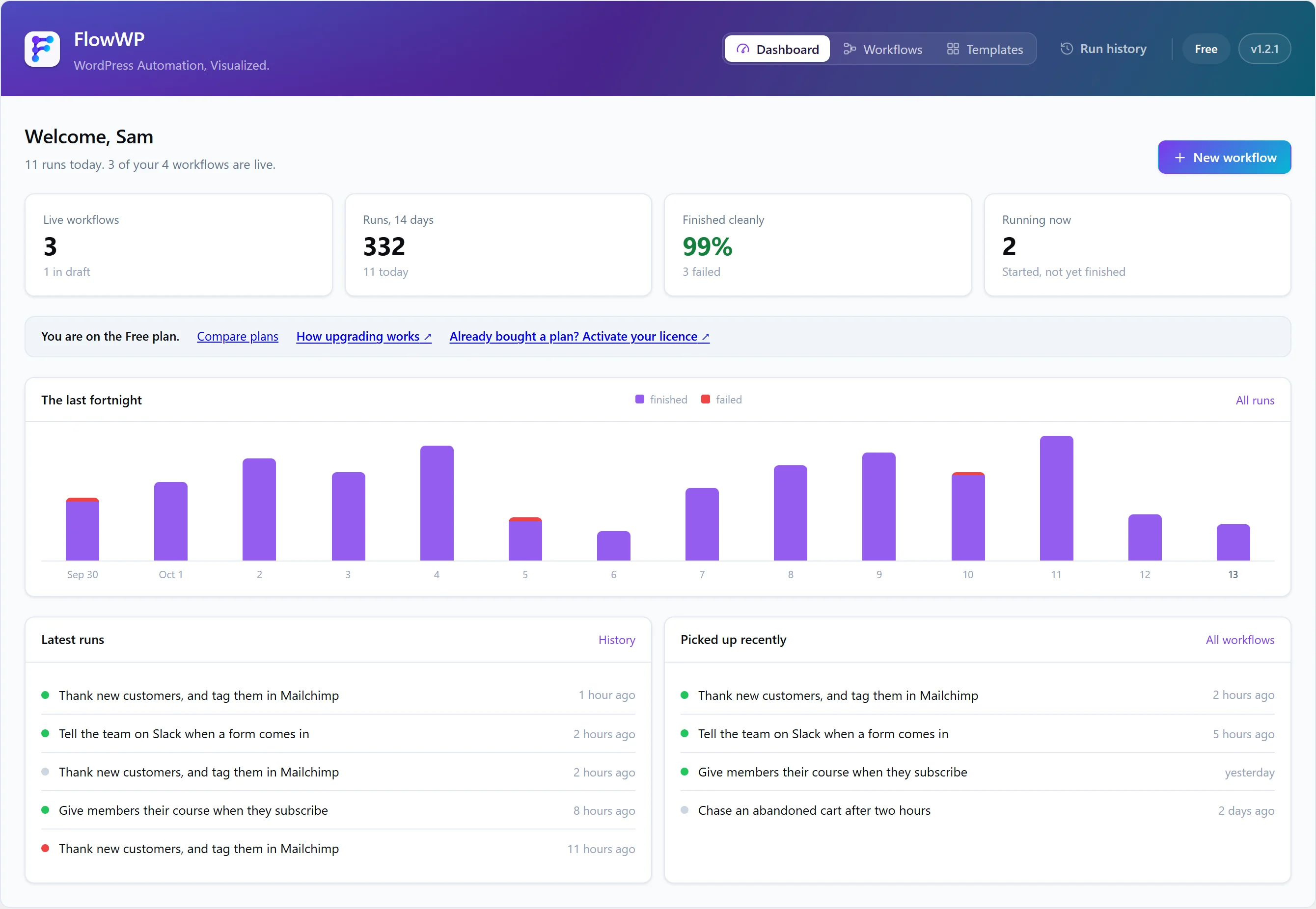
- Open FlowWP in the admin menu. The dashboard offers two ways to start: a ready-made template or a blank canvas. FlowWP Pro adds a third, a description for the AI builder.
To install it by hand instead, download the latest version and upload the zip under Plugins → Add New Plugin → Upload Plugin. FlowWP Pro is installed the same way, from the zip in your Freemius account; see Activate your licence.
Free is not a trial. The free plugin does not expire, has no caps on workflows, steps or runs, and works the same on any site. A paid plan comes as FlowWP Pro, which adds steps and features it does not include; see What each plan includes.
The FlowWP menu
| Screen | What it is for |
|---|---|
| Dashboard | How many workflows are live, how recent runs went, and the ways to start a new workflow. |
| Workflows | Every workflow, with the switch that turns each one on or off. Open one to edit it. |
| Templates | The library of ready-made workflows, with the plan each one needs. |
| Connections | FlowWP Pro only: encrypted API keys and tokens for Slack, Mailchimp, AI providers and other services. |
| Account | In FlowWP Pro, your licence on this site: plan, licence key, activation and billing. See Manage your licence and subscription. |
| Contact Us | A secure form for writing to the FlowWP team. |
| Docs | Opens this documentation. The Plugins screen also links to Docs, Troubleshooting and Contact under FlowWP. |
| Pricing | The plans and checkout, from Freemius. See Upgrade to FlowWP Pro. |
FlowWP’s own navigation runs along the top of every FlowWP screen, with Run history beside the dashboard, workflows and templates, and your plan on the right.
Keys that survive a key rotation
In FlowWP Pro, connections are encrypted with your site’s own keys. If you rotate the WordPress salts, saved API keys can no longer be read. To keep them readable across a rotation, define your own encryption key in wp-config.php:
define( 'FLOWWP_ENCRYPTION_KEY', 'a long random string' );