
Build with AI
Describe a workflow and have a draft built from your site’s steps, or change one by describing the change.
Updated
Describe a workflow in your own words and FlowWP builds a draft from the steps your site actually has. You can also change an existing workflow by describing the change. The AI builder is part of FlowWP Pro, included on every paid plan with no daily limit. The free plugin has no Build with AI or Change with AI buttons.
Before you start: an AI connection
The builder uses your own key with Anthropic (Claude), OpenAI or Google (Gemini). Add one under FlowWP → Connections; see Connections. Your description and the list of steps available on your site are sent to the provider you choose, and the provider bills your key: building a workflow takes two or three requests.
Build a workflow from a description
- On the dashboard, choose Build with AI.
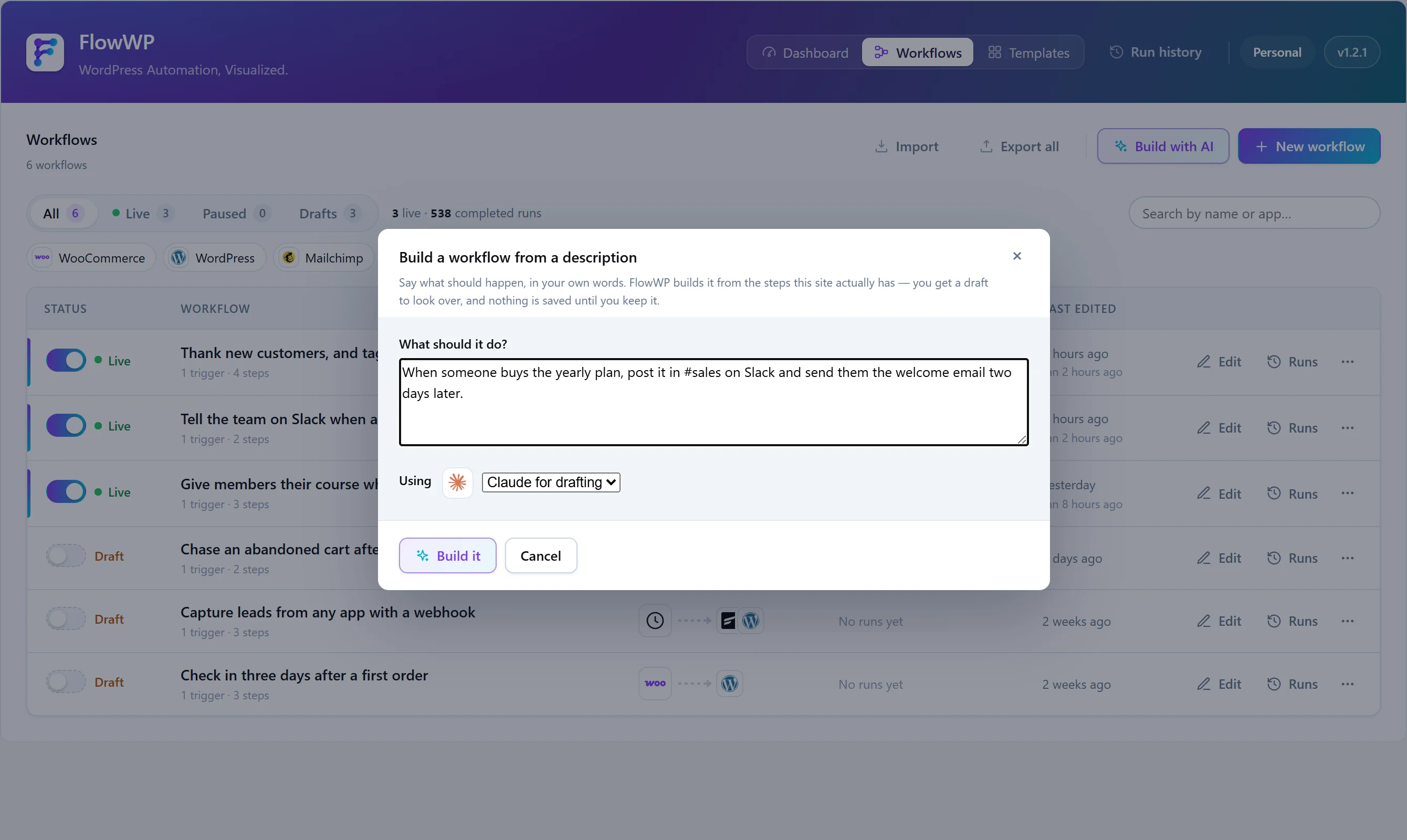
- Under What should it do?, describe the workflow, for example: When someone buys the yearly plan, add them to the members list and send the welcome email two days later.
- Choose the connection to use under Using and press Build it.
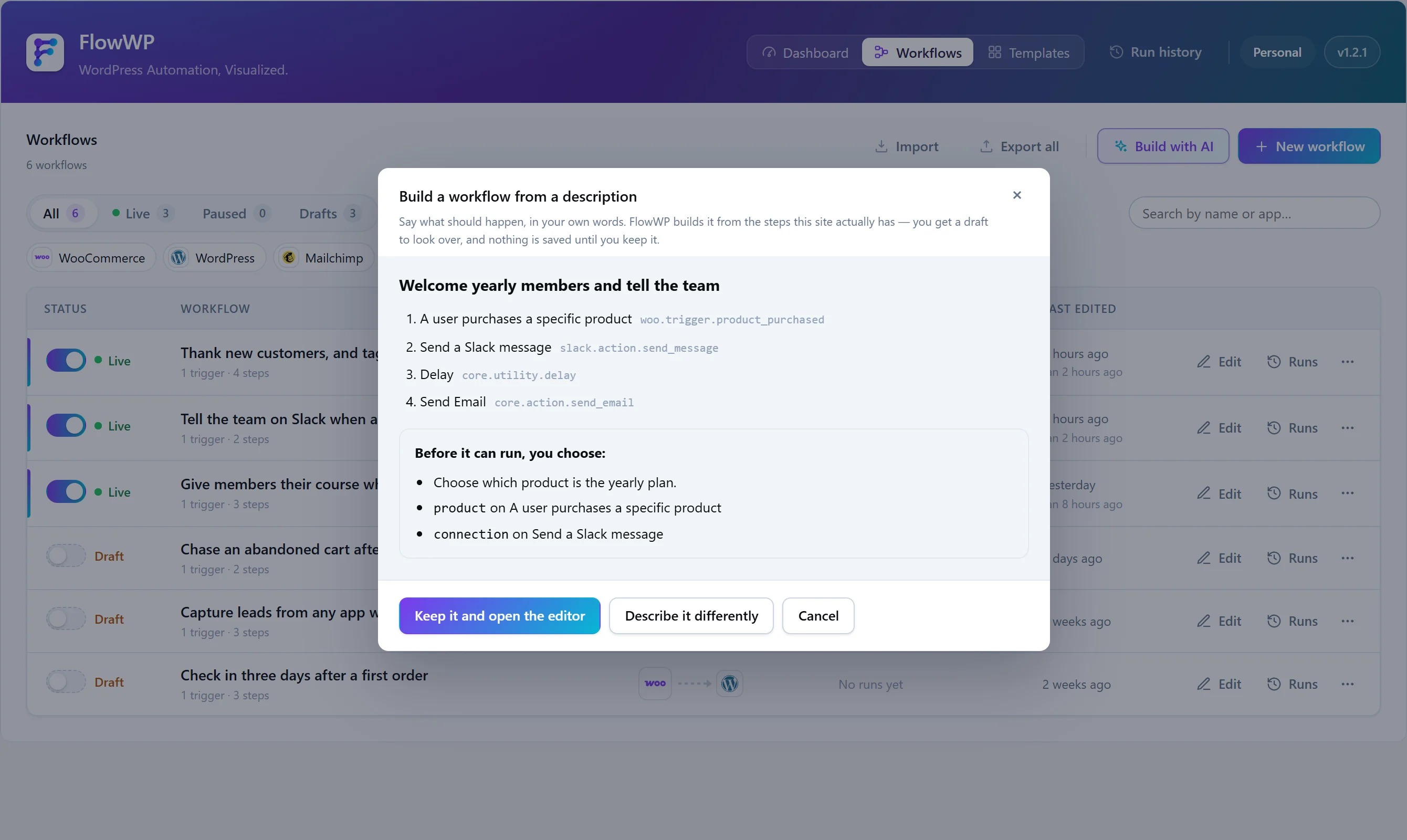
- Review the draft: its steps are listed in order, with what you still need to choose under Before it can run, you choose, and anything worth checking listed separately.
- Press Keep it and open the editor to save it as a new workflow, or Describe it differently to try again.
Nothing is saved or switched on by the builder. A kept draft is an ordinary inactive workflow: edit it, test it and activate it like any other.
How the draft is built
- Only steps your site can run. The AI chooses from steps whose plugin is installed and whose plan you have. It cannot name a WooCommerce trigger on a site without WooCommerce.
- Two passes. First the steps and how they connect, then the settings of just those steps, including which tokens from earlier steps each one uses.
- Checked like anything you build. The draft goes through the same validation as the editor. If it fails, it is sent back once with the validation messages, and the repaired version is kept only if it is better.
- Blanks stay blank. Details only you know — an address, a channel, a form — are left for you to fill in and listed, instead of being made up.
- A generated workflow has at most 20 steps.
Change a workflow by describing it
In the editor, use Change with AI and say what should be different: add a Slack message after the email. FlowWP answers with the change itself — what was added, removed, reconnected or reconfigured — so you can agree to it at a glance. Steps you did not mention keep their positions, labels, notes and settings. Applied changes land on the canvas unsaved, so undo and version history still work.
Which plans include it
Personal, Business and Agency, with no daily limit: FlowWP does not count builds. Each build is a request to your AI provider on your own key, so the provider bills you for what you use.