
Troubleshooting
Licence activation, locked paid features, failed runs, connection errors, and installing or updating.
Updated
Fixes for the problems people run into most: activating a licence, paid features that stay locked, workflows that do not start, failed runs, connections, and installing or updating FlowWP. If your problem is not here, see Still stuck at the end.
A licence will not activate
- The key is not accepted. Copy it again from your receipt or the Freemius User Dashboard, without spaces before or after it, and check it is your FlowWP key. An expired licence does not unlock paid features: renew it first.
- Activation fails or nothing happens. Activating contacts Freemius from your server. If your host or a security plugin blocks outgoing requests, ask them to allow requests to Freemius, then try again.
- All your sites are in use. On a site that no longer needs the licence, click Deactivate License on FlowWP → Account, then activate it on the new site. Or move to a plan with more sites with Change Plan.
The whole process is in Activate your licence.
Paid features still locked
If you have bought a plan but steps are still locked, or FlowWP’s top bar still says Free:
- Check that the licence is activated on this site. Buying a plan does not activate it. FlowWP → Account should show your plan and licence key.
- Click Sync on the Account page, to fetch the licence again after a purchase, a renewal or a plan change.
- Updated to FlowWP 1.2 from an earlier version? Activate your licence once more. FlowWP’s Freemius identifier changed with its new name, so the site no longer finds its earlier activation. See Activate your licence.
- Check that FlowWP Pro is installed. The free plugin from WordPress.org works the same whatever licence you own: it does not contain the paid steps, so a licence alone unlocks nothing there, and such a step fails with “… is part of FlowWP Pro and is not included in this plugin, so this step could not run.” Install FlowWP Pro as described in Activate your licence; Version on its Account page then reads Premium version.
- Check the plan includes the step. A lock names the plan that includes it, and plans build on each other. Each integration page lists the plan for every step.
- Check the plugin the step needs. Steps for another plugin, such as WooCommerce or LearnDash, are only available while that plugin is installed and active. That is a missing plugin, not a missing plan.
A workflow does not start
No plan limits workflows, steps or runs, so a workflow never stops because of a count. When one does not start:
- Check that it is switched on. A new workflow is a draft and does nothing until you activate it on Workflows.
- Check its steps are on your plan. FlowWP will not switch on a workflow that uses a step your plan does not include, and names the step and the plan. If a licence has ended, see Manage your licence and subscription.
- Check the plugin its trigger needs. A WooCommerce or LearnDash trigger only fires while that plugin is installed and active.
- Still on FlowWP 1.0? Its free version stopped at 100 runs a month, 10 HTTP requests and 5 workflows. Version 1.1.0 removed every one of those caps: update from Plugins.
To check what happened on a run that did start, see the next section.
A workflow run failed
- Open Run history, filter the list to failed runs and choose Inspect on the run. The failed step is marked, with its input and its error message.
- Fix the cause — usually a step’s settings, a token that was empty, or a connection.
- Use Run again to repeat the run with the same data, or rehearse with a test run.
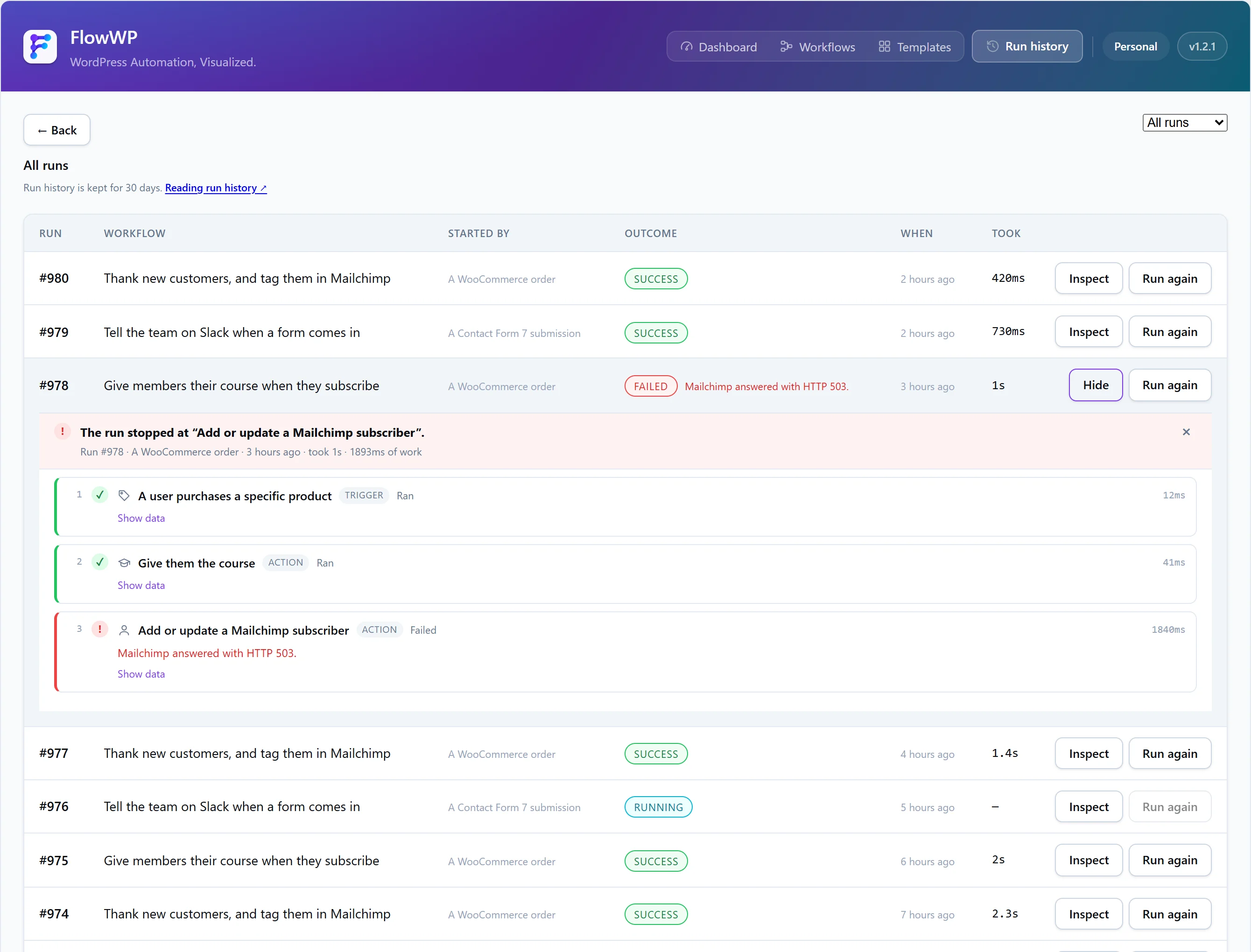
A run that is Halted was stopped on purpose by a condition such as Only continue if — that is not an error. To make a workflow handle failures itself, add automatic retries or an On error branch; see Errors and retries and Run history.
Delays and schedules run late
Delays, schedules and retries are queued with Action Scheduler, the background queue WooCommerce also uses, which relies on WordPress’ scheduled tasks (WP-Cron). On a site with very little traffic, or with WP-Cron turned off and no server cron in its place, they run late. Ask your host to run WP-Cron from a server cron job.
Connection and credential errors
Connections are part of FlowWP Pro. The free plugin has no Connections page and no steps that need one, unless another plugin adds a connection type of its own.
| Message | What to do |
|---|---|
| “The connection is missing or can no longer be read. Choose a connection, or enter its API key again in FlowWP → Connections.” | The step’s connection was removed, or never chosen. Choose one in the step’s settings, or add it again in FlowWP → Connections. |
| “This connection can no longer be read — the site’s security keys have changed since it was saved. Enter the API key again.” | The WordPress salts changed, for example after a migration or a security clean-up. Enter the key again. To keep keys readable across future changes, define FLOWWP_ENCRYPTION_KEY; see Install FlowWP. |
If the service itself refuses the key, check you copied the right kind of credential:
- Slack: the Bot User OAuth Token, starting with
xoxb-, with thechat:writescope — plususers:read.emailto send direct messages by email address. - Mailchimp: the whole API key, including the data centre at the end, such as
-us14. - WhatsApp: a permanent token from a system user in Meta Business Settings. The temporary token on the app dashboard expires after 24 hours.
- OpenAI: a key starting with
sk-; Anthropic: a key starting withsk-ant-.
More on adding and protecting keys in Connections.
Installing or updating FlowWP
- The plugin will not activate. FlowWP needs WordPress 6.5 or later and PHP 8.1 or later. Your host can tell you, and change, the PHP version.
- Installing FlowWP Pro next to the free plugin. You do not need to remove the free plugin first: activating FlowWP Pro deactivates it automatically. Your workflows are kept.
- Updating. Update from Plugins like any other plugin. Workflows, connections, settings and run history are kept in the database, not in the plugin’s files. Keep a recent backup of your site before any update. Updating FlowWP Pro to 1.2 from an earlier version needs the licence activated once more (see above).
- After an update, something looks out of date. Reload the page, and clear any caching plugin or browser cache that may still serve old files.
Still stuck
Write to us from FlowWP → Contact Us in WordPress, or the contact form. Tell us what you expected, what happened, the message you saw, and your FlowWP version (shown in FlowWP’s top bar). For licence questions, include the email address you bought with. Business and Agency include priority support.