
The workflow editor
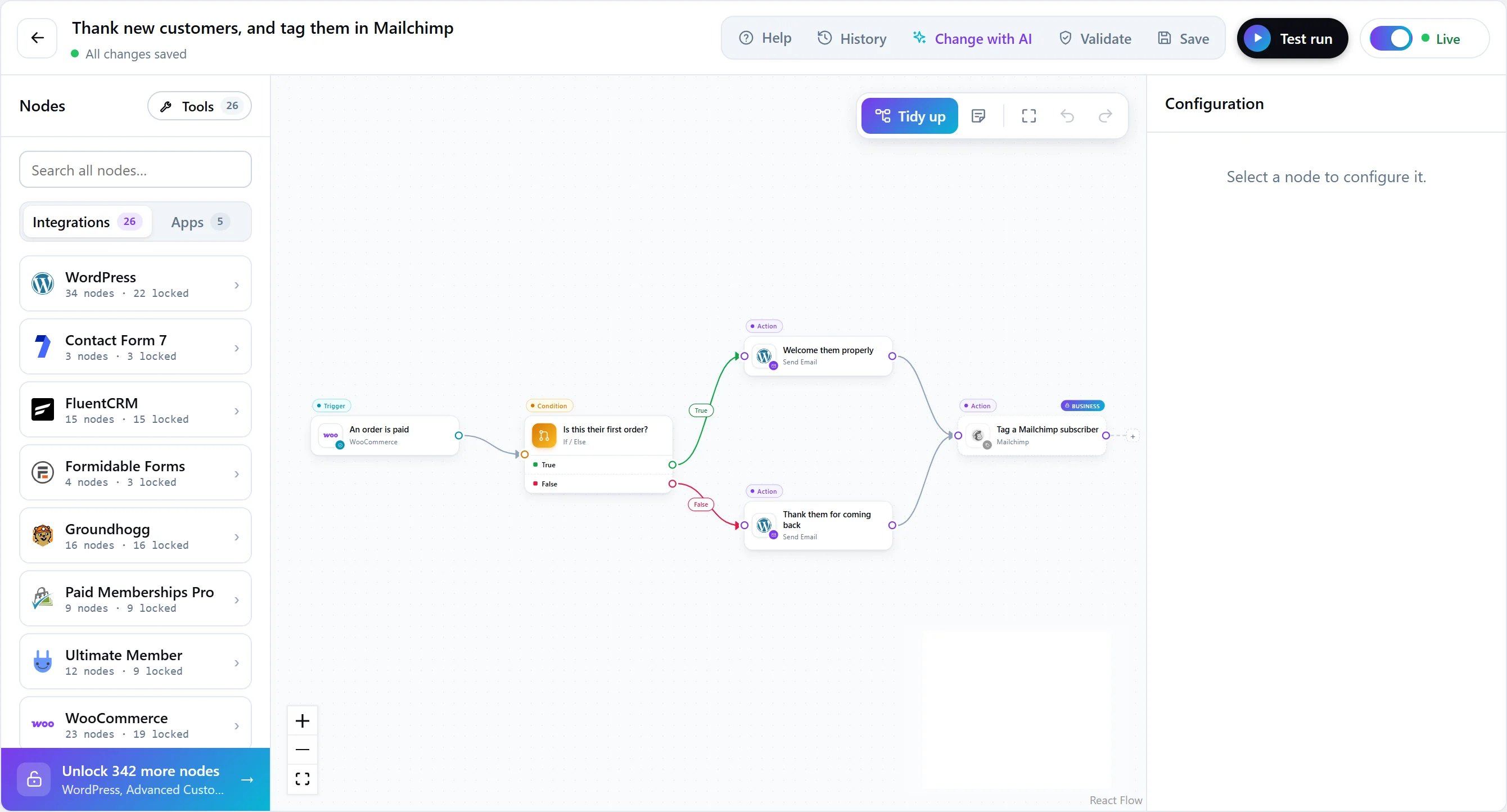
The step library, the canvas, the settings panel and the tools along the top of the editor.
Updated
The editor is where every workflow is built. It has three areas: the step library on the left, the canvas in the middle, and the settings of the selected step on the right. Actions run along the top.
The step library
Steps are grouped into integrations (plugins such as WooCommerce or WPForms), apps (services such as Slack or Mailchimp, which need a connection) and tools (logic, data tools, schedules and webhooks, AI).
- Every supported integration is listed, whether or not its plugin is installed. When a plugin is missing, its steps say what to install instead of disappearing.
- Steps your plan does not include are shown with the plan that does, so you can see what is possible before upgrading.
The canvas
- Drag a step from the library onto the canvas, then connect one step’s output to the next step’s input.
- Hover a step to quick-add the next one, duplicate it or delete it.
- Use the one-click tidy-up to lay out the whole graph for you.
- Add sticky notes to explain a workflow to whoever edits it next.
Steps with more than one output, such as If / Else (True and False) or Switch (one output per route), show each output separately, so each branch can lead to its own steps.
Step settings
Select a step to open its settings. Required fields are marked, and any field can hold a token from the trigger or an earlier step: open the token picker to insert one. See Tokens and data mapping.
The toolbar
From left to right: the workflow’s name and whether it is saved, four tools, Test run, and the switch that takes the workflow live.
| Tool | What it does |
|---|---|
| History | Opens this workflow’s past runs. |
| Change with AI | Changes the workflow from a sentence. See Build with AI. |
| Validate | Checks everything is set up to go live and points at anything missing. |
| Save (Ctrl+S) | Saves the workflow. Test runs and activation save first, so they always use what is on screen. |
| Test run | Runs the workflow now with example data, rehearsing anything that would change something. See Test and activate. |
| Switch | Activates or deactivates the workflow — the same switch as in the workflow list. |
Versions
Workflows are saved as versions. A run always finishes against the version it started with, so editing a workflow never changes what a run already in progress is doing — a run started on Monday that waits three days does not finish on Thursday against a graph nobody tested.