
Upgrade to FlowWP Pro
When a paid plan is worth it, comparing plans, and what to check once FlowWP Pro is running.
Updated
The free FlowWP plugin from WordPress.org is not a trial, does not expire and has no caps: workflows, steps, runs, webhooks and HTTP requests are unlimited, and it works the same on every site whatever licence you own. Paid plans come as FlowWP Pro, which adds the steps and features the free plugin does not include. This page covers when that is worth it, how to upgrade, and what to check afterwards.
Upgrading takes three separate steps: buy a plan, install FlowWP Pro, and activate your licence on the site. Each one is described in detail in Activate your licence.
When to upgrade
You never upgrade because you ran out of something. You upgrade for what a paid plan adds, such as:
- Waiting and repeating: delays, schedules, loops over a list, and Switch to split a run several ways.
- Changing content: actions that create and update posts, users and meta, and the rest of WordPress’ triggers.
- Your other plugins and apps: most integration steps — WooCommerce, the form, LMS, membership and CRM plugins — and the connections to Mailchimp, Slack and the other messaging apps, which the free plugin does not have.
- AI: the AI steps and the AI workflow builder (Build with AI and Change with AI), unlimited on every paid plan with your own AI provider key.
- Moving work around: workflow import and export, and file imports (CSV, JSON, XML).
- More sites or longer history: Business covers 5 sites and keeps runs for 90 days, Agency 25 sites and 180 days.
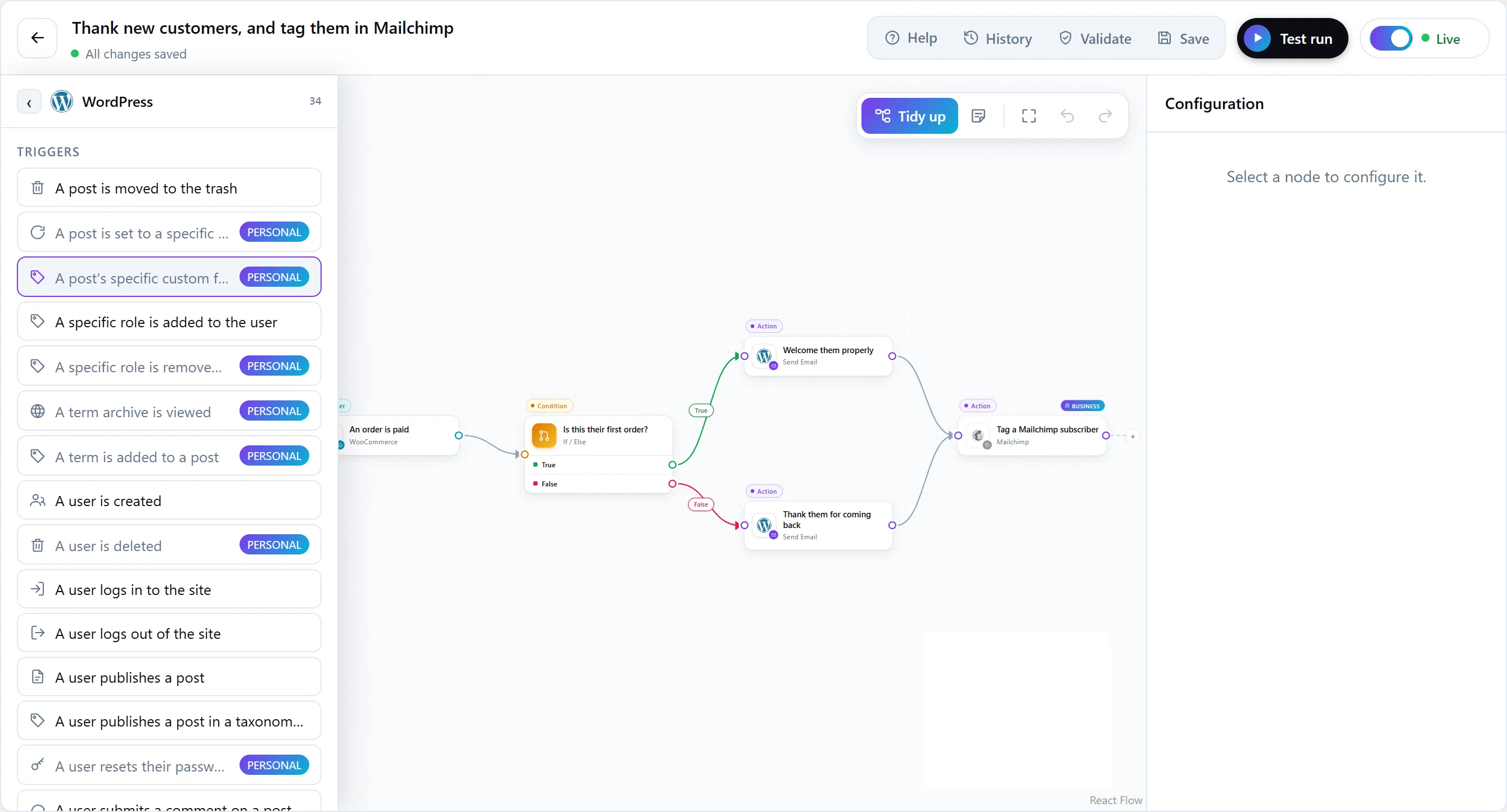
Inside the free plugin, steps from a paid plan stay visible, badged with the plan that includes them: steps in the step library, templates in the library, comparisons in a condition. A template from a paid plan says “Included in the … plan. Upgrade to use it.”, and FlowWP will not switch on a workflow that uses a step your plan does not include.
The free plugin’s dashboard has one line for this: Compare plans, How upgrading works (this page) and Already bought a plan? Activate your licence. It has no Connections page and no AI buttons, because those are part of FlowWP Pro. For everything each plan adds, see What each plan includes.
Compare plans
- Personal — 1 site. Delays, schedules, loops and Switch, actions that create and update content, import and export, the AI steps and the AI workflow builder, and the most-used plugin integrations.
- Business — 5 sites. Everything in Personal, the full set of form, LMS, membership, CRM, marketing and messaging integrations, 90 days of run history and priority support.
- Agency — 25 sites. Everything in Business, 180 days of run history and custom automation nodes.
Every plan is billed monthly, annually or once for a lifetime licence. Prices and the full feature comparison are on the pricing page.
Buy a plan
- Choose a plan and billing period on the pricing page, or from Compare plans on the FlowWP dashboard.
- Complete the secure Freemius checkout.
- Freemius emails you your receipt and licence key. Your licences and downloads are also in the Freemius User Dashboard.
Install FlowWP Pro
The free plugin does not contain the paid steps, so the site needs FlowWP Pro. Upload the FlowWP Pro zip in Plugins → Add New Plugin → Upload Plugin and activate it. You do not need to remove the free plugin first: activating FlowWP Pro deactivates it automatically. Then activate your licence key. The full steps are in Activate your licence.
Your workflows and settings
There is nothing to migrate. Workflows, settings and run history are kept in your site’s database, not in the plugin’s files, and the free plugin and FlowWP Pro read the same data. Deactivating the free plugin does not remove anything, and deleting it only removes FlowWP’s data if you explicitly ask it to.
Before you delete the free plugin, check that your workflows appear in FlowWP → Workflows with FlowWP Pro active. As with any plugin change, a recent backup of your site is a good idea.
Steps from your plan unlock as soon as your licence is active, and FlowWP gains its Connections page and the AI buttons. Workflows you built stay as they are: switch on any you had to leave off, and add the steps you could not use before.
After upgrading, check
- FlowWP’s top bar shows your plan’s name, not Free.
- FlowWP → Account shows your plan, and Version is marked Premium version (FlowWP Pro).
- The steps your plan includes are no longer locked in the editor’s step library, and Connections is in the FlowWP menu.
- Your workflows are listed, and the ones that should run are switched on.
- The dashboard no longer shows the “You are on the Free plan.” line.
If paid steps are still locked, see Paid features still locked.
Moving between paid plans
To move to another plan, for example from Personal to Business for more sites, use Change Plan on FlowWP → Account, then Sync. See Manage your licence and subscription.