
Templates
Start from a ready-made workflow, see what it needs, and fill in the settings only you know.
Updated
Templates are ready-made workflows. Choosing one creates an ordinary workflow that you can change freely: a template carries no hidden behaviour.
Use a template
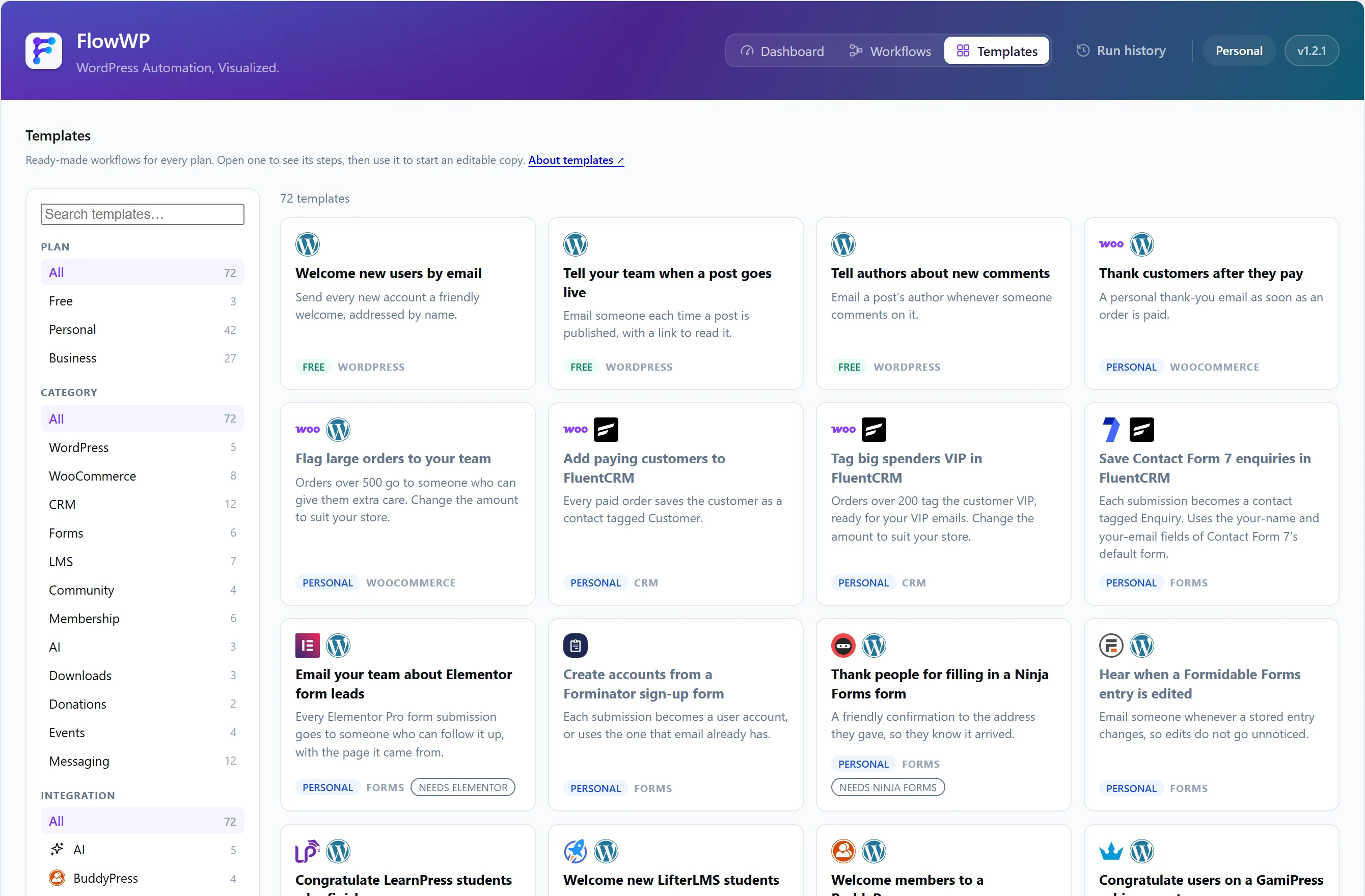
- Open FlowWP → Templates, or choose a template from the dashboard. Search, or filter by app and category.
- Choose a template to see its steps and what it needs.
- Use it. It is created as a new, inactive workflow.
- Fill in the settings the template leaves for you — the editor points at each one — then test and activate it.
You can browse the whole library, with every template’s workflow drawn out, on the templates page.
What a template leaves to you
Some settings only you know: which course, which product, who hears about large orders. Templates leave those blank and name them, such as who handles large orders. Everything else is filled in with tokens that resolve on their own.
Plan and plugin badges
- A plan badge means a step in the template needs that plan. A template is never counted against your plan: you can use any template whose steps your plan includes. Three of the library’s templates are built only from free steps; the rest need Personal or above.
- A plugin note means a step’s plugin is not installed. You can still use the template — setting a workflow up before installing the plugin is reasonable — but it cannot be activated until the plugin is there.