
Activate your licence
Buy a plan, install FlowWP Pro and activate your licence key — three separate steps — and fix activation problems.
Updated
Buying a plan, installing FlowWP Pro and activating your licence are three separate steps. This page walks through all three, in order, and what to do when activation does not go through.
The free FlowWP plugin from WordPress.org works the same on every site, whatever licence you own: it has no licence field and checks no licence. Paid features come from installing FlowWP Pro, the version with the paid steps and features in it, and activating your licence there.
FlowWP’s checkout, licences and FlowWP Pro downloads are handled by Freemius, the licensing service FlowWP uses. That is why some of the screens below — the checkout, the Account page and Contact Us — look slightly different from the rest of FlowWP.
Updating to FlowWP 1.2 from an earlier version? Activate your licence again, once, after the update. FlowWP’s Freemius identifier changed with its new name, from
flowwptoflowwp-workflow-automation, and Freemius stores each site’s connection under that identifier, so the site no longer finds its earlier activation. Your licence key is the same; enter it as in step 3. If Freemius then says all your sites are in use, contact us.
1. Buy a plan
- Choose a plan on the pricing page. Personal covers 1 site, Business 5 sites and Agency 25.
- Pick monthly, annual or lifetime billing and complete the secure Freemius checkout.
- Freemius emails you your receipt and your licence key. Keep that email: you need the key to activate. Your licences, invoices and downloads are also in the Freemius User Dashboard, where you sign in with the email address you bought with.
Buying is not activating. A purchase gives you a licence and the FlowWP Pro download. Nothing changes on your site until FlowWP Pro is installed and the licence is activated there.
2. Install FlowWP Pro
FlowWP Pro is FlowWP with the paid steps and features included: loops, delays, Switch, schedules, the integration steps, the connections to Slack, Mailchimp and the AI providers, and the AI workflow builder. The free plugin does not contain them, so a licence alone is not enough: the site needs FlowWP Pro.
- Download the FlowWP Pro zip from the Freemius User Dashboard.
- In WordPress, go to Plugins → Add New Plugin → Upload Plugin, upload the zip and click Install Now.
- Click Activate Plugin.
If the free plugin is already installed
You do not need to remove it first. When FlowWP Pro is activated while the free plugin is running, the free plugin is deactivated automatically, so only one copy of FlowWP runs at a time. Your workflows and run history are stored in the site’s database, not in the plugin’s files, so FlowWP Pro picks them up.
Once FlowWP Pro is active you can delete the free plugin from Plugins. Deleting FlowWP only removes its data if you explicitly ask it to; by default everything is left in place.
The free plugin has no licence field. A licence key is entered in FlowWP Pro, so install it first and activate your licence there (step 3). On a free site, the dashboard’s Already bought a plan? Activate your licence link opens this page.
3. Activate your licence
- After you activate FlowWP Pro, it asks for your licence. Paste the licence key from your receipt and click Activate License.
- Open FlowWP. Your plan’s name now shows at the right of FlowWP’s top bar, and the steps your plan includes are no longer locked.
Each licence covers a number of sites: 1 on Personal, 5 on Business and 25 on Agency. Activating the licence on a site uses one of them.
Check your licence: the Account page
In FlowWP Pro, FlowWP → Account shows the licence on this site:
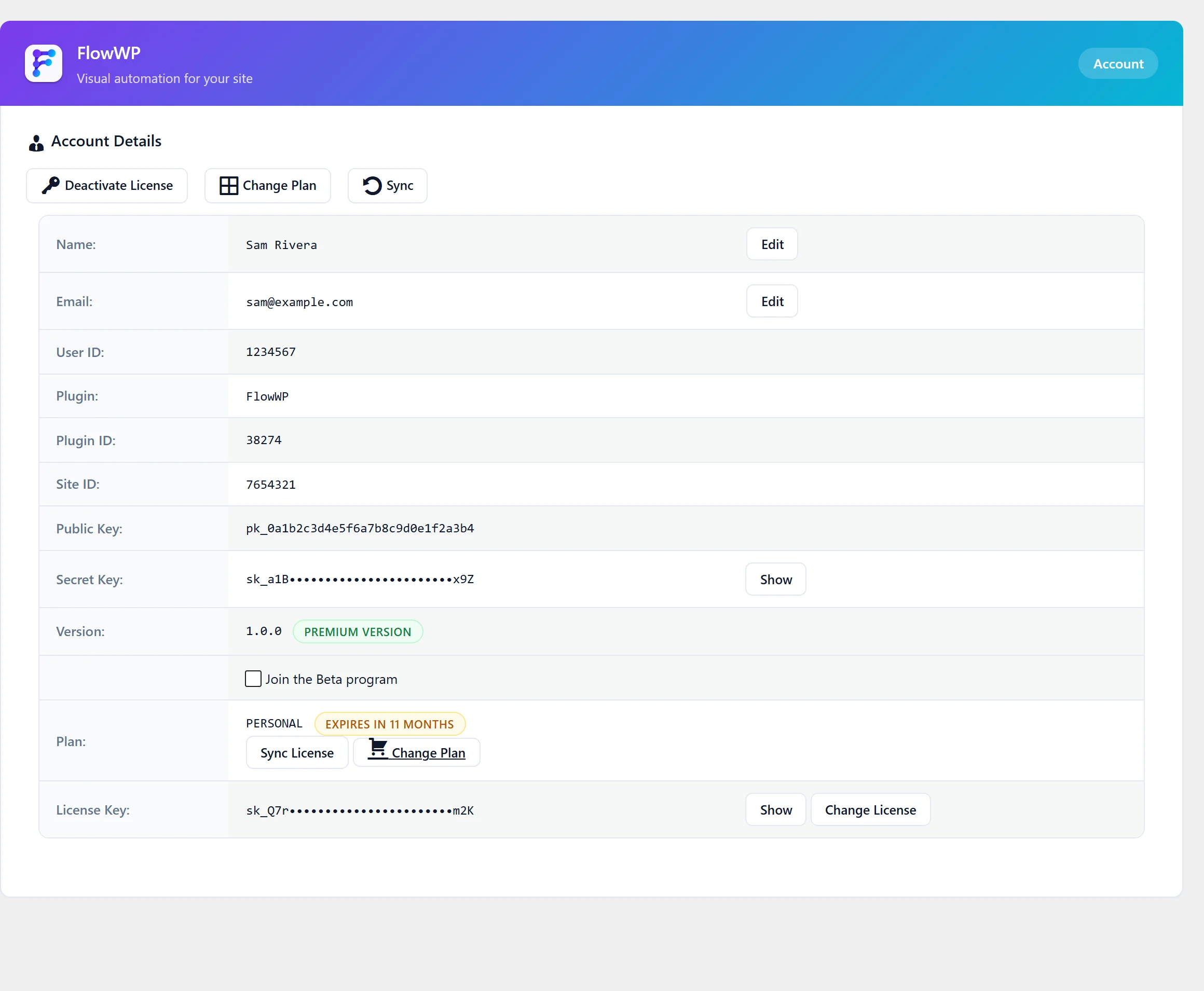
| On the page | What it tells you |
|---|---|
| Plan | Your plan, and when it expires or renews. |
| Version | Whether this site runs FlowWP Pro: Freemius labels it Premium version. |
| License Key | The key in use, with Change License to use another one. |
| Sync | Fetches your licence again — use it after a purchase or an upgrade. |
| Deactivate License | Frees this site’s activation, for example before moving the licence to another site. |
For billing, renewals and cancelling, see Manage your licence and subscription.
Troubleshooting activation
The key is not accepted
- Copy the key again from your receipt, without spaces before or after it.
- Make sure it is the key for FlowWP, if you have licences for other products from the same email address.
- Can’t find it? In the licence key dialog, Can’t find your license key? asks for the email address you bought with and sends the key there again.
- An expired licence does not unlock paid features. Renew it (see Manage your licence and subscription), or buy a new plan.
Activation fails or nothing happens
- Activation contacts Freemius from your server. If your host or a security plugin blocks outgoing requests, it cannot complete — ask your host to allow requests to Freemius.
- Try again from FlowWP → Account, then click Sync.
Your licence was active before you updated
Since FlowWP 1.2, a site that was activated under the old Freemius identifier needs its licence entered once more. See the note at the top of this page.
All your sites are in use
A licence can only be active on as many sites as its plan includes. To use it on a new site, open FlowWP → Account on a site you no longer need it on and click Deactivate License, then activate it on the new site. If you can no longer sign in to the old site, contact us. To cover more sites, move to a plan with more of them with Change Plan.
Paid steps are still locked
See Paid features still locked in Troubleshooting.
Getting help
Use FlowWP → Contact Us inside WordPress, or the contact form on this site. Include the email address you bought with, so we can find your licence. Business and Agency include priority support.