
Skip to content
FlowWP logo
Menu

WordPress automation: let your site do the repetitive work

WordPress automation means your site carries out routine work by itself. When something happens — an order is paid, a form is sent, someone signs up — it runs the steps a person would otherwise do by hand: send the email, update the CRM, tell the team.

A real workflow from the template library

Stay on top of stock changes

  1. WooCommerce logoTrigger · WooCommerceA product’s stock status changes
  2. Condition · LogicSwitch
    1. Branch: Sold out
      1. Action · EmailSend Email
    2. Branch: Back in stock
      1. WordPress logoAction · WordPressCreate a post
      2. Action · EmailSend Email
    3. Branch: On backorder
      1. Action · EmailSend Email
Open this template

Why automate

The work that repeats is the work that gets missed

  • Nothing depends on remembering

    The welcome email, the CRM update and the team alert happen every time, not only when someone notices the order or the entry.

  • It happens when the event does

    A workflow responds the moment something happens on the site, at night and at weekends included.

  • There is a record

    When every run is recorded step by step, “did the email go out?” has an answer you can look up.

How it works

Every automation has three parts

  1. 01 · Trigger

    Something happens

    The event that starts the workflow, on your site or from another system.

    WooCommerce logoTrigger · WooCommerceAn order is paid
  2. 02 · Condition

    Decide whether, and which way

    Rules that stop a run, or send it down a different branch for different cases.

    ConditionIs this their first order?
  3. 03 · Action

    Do the work

    Send the email, update the CRM, enroll the student, call an API, tell the team.

    Action · EmailSend the welcome email

Data travels between the steps: the customer’s name, the order total or the form’s answers fill in later steps as tokens, such as {{ trigger.order.email }}. Data mapping · The steps above are an illustration.

Built visually

A workflow is something you can see

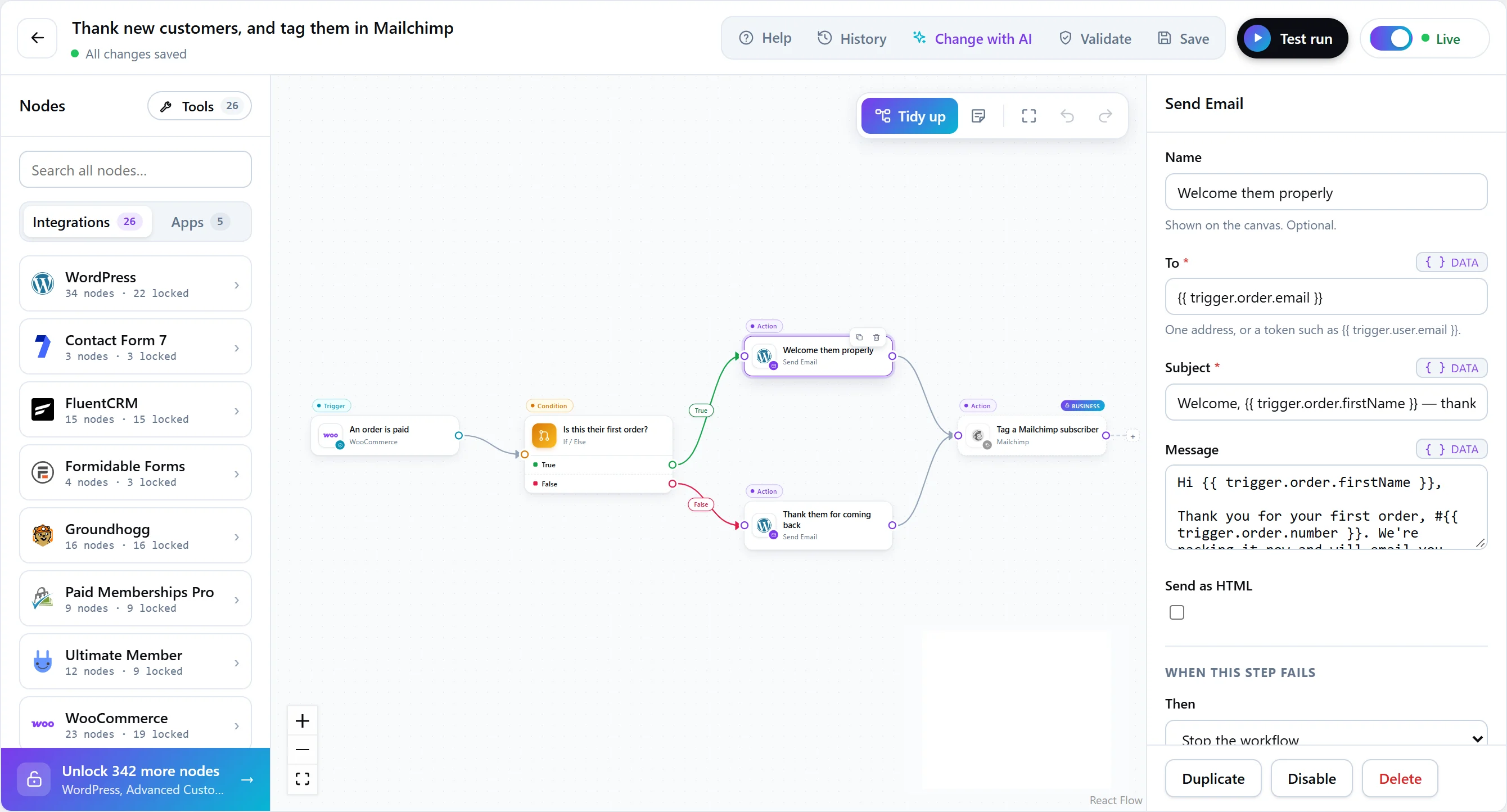
In FlowWP you drag steps onto a canvas and join them. Branches sit side by side, every field can take data from an earlier step, and the whole workflow reads left to right.

The FlowWP editor: the step library on the left, a workflow with a trigger, an If / Else and three actions on the canvas, and a Send Email step’s settings on the right.
The FlowWP editor. Screenshot with example data.

Types of automation

Four ways a workflow starts or thinks

  • When something happens

    An order is paid, a form is sent, a user signs up, a post is published, a course is finished.

    Triggers
  • On a schedule

    Hourly, daily, weekly, monthly, on weekdays, at a set interval, or once: reports, reminders and checks (Personal and above).

    Scheduler
  • When another system calls

    Another app calls your workflow’s webhook URL, and the workflow runs with what it sent (unlimited on every plan).

    Webhooks
  • With AI in the loop

    AI steps sort, summarise or draft as part of a workflow, with your own AI provider key (Personal and above).

    AI workflow builder

WooCommerce automation

Store workflows that run on every order

    1. WooCommerce logoTrigger: An order is paid (WooCommerce)
    2. FluentCRM logoCondition: A FluentCRM contact has a tag (FluentCRM)
    3. FluentCRM logoAction: Add tags to a FluentCRM contact (FluentCRM)
    4. +7 more steps
    WooCommercePersonal plan

    Turn first-time buyers into repeat customers

    A first order starts a short series: a welcome, a check-in three days later, and a one-time 10% coupon a week after that. Returning customers are just tagged.

    10 stepsAdvanced
    1. WooCommerce logoTrigger: An order is paid (WooCommerce)
    2. Condition: Switch (Logic)
    3. WooCommerce logoAction: Set an order’s status (WooCommerce)
    4. Action: Send Email (Email)
    5. +3 more steps
    WooCommercePersonal plan

    Hold risky orders for a quick check

    Paid orders over 1,000 go on hold for a person to check; guest orders using a coupon get a note and an alert. Everything else is marked as checked.

    7 stepsAdvanced
    1. WooCommerce logoTrigger: A customer’s lifetime spend passes an amount (WooCommerce)
    2. FluentCRM logoAction: Add or update a FluentCRM contact (FluentCRM)
    3. WooCommerce logoAction: Generate a coupon code (WooCommerce)
    4. Action: Send Email (Email)
    5. Action: Send Email (Email)
    WooCommercePersonal plan

    Reward customers who reach a lifetime spend

    When a customer’s total spend passes 1,000, tag them VIP, send a personal 15% code, and let your team know who they are. Change the amount to suit your store.

    5 stepsIntermediate

APIs and webhooks

Connect the systems that are not plugins

  • Receive. A webhook trigger gives a workflow its own URL. Another app sends a request, gets 202 Accepted straight away, and the workflow runs in the background with what it sent.
  • Send. An HTTP Request step calls any API, and the response is available to the steps after it.
Start a workflow from another systemShell
curl -X POST "https://your-site.com/wp-json/flowwp/v1/hooks/YOUR_KEY" \  -H "Content-Type: application/json" \  -d '{"email": "jane@example.com", "plan": "pro"}'
    1. Webhooks and schedules logoTrigger: A webhook is received (Schedules & Webhooks)
    2. Condition: Only continue if (Logic)
    3. FluentCRM logoAction: Add or update a FluentCRM contact (FluentCRM)
    4. Action: Send Email (Email)
    5. Action: Send Email (Email)
    CRMPersonal plan

    Capture leads from any app with a webhook

    Point Zapier, Make, a landing page or any other tool at this workflow’s webhook. Leads with an email are saved in FluentCRM, welcomed, and passed to your team.

    5 stepsIntermediate
    1. Webhooks and schedules logoTrigger: On a schedule (Schedules & Webhooks)
    2. Action: HTTP Request (HTTP)
    3. Condition: If / Else (Logic)
    4. Action: Send Email (Email)
    WordPressPersonal plan

    Check a page is up every 15 minutes

    Requests a page on a schedule and emails you the moment it answers with an error, including the status code.

    4 stepsIntermediate
    1. WordPress logoTrigger: A user publishes a post (WordPress)
    2. Action: Set variables (Data tools)
    3. Action: HTTP Request (HTTP)
    4. Condition: If / Else (Logic)
    5. Action: Send Email (Email)
    WordPressPersonal plan

    Share new posts to Slack or Discord

    Each published post is sent to a chat channel through an incoming webhook. If the channel refuses it, you get an email instead of silence. Works with Slack, Discord, Teams and anything else that takes JSON.

    5 stepsIntermediate

How FlowWP approaches it

Automation you can trust with real customers

  • Inside WordPressWorkflows run on your own site, on WordPress’ own hooks. No external service in the middle and no per-task pricing.
  • Nothing runs by surpriseA new workflow is a draft. It does nothing until you activate it, and switching it off stops it at once.
  • Tested before it is liveA test run uses example data and rehearses anything that would send or change something.
  • Every run recordedWhich steps ran, what each was given and returned, and where a run stopped, kept for 7 to 180 days by plan.
  • Retries only when safeA failed step is retried automatically only if repeating it cannot do the same thing twice (every plan).
  • Describe it, review itDescribe a workflow in a sentence and the AI builder drafts it from your site’s steps, for you to check before saving.

Templates

Start from 72 ready-made workflows

Pick one, fill in what only you know — which product, which list, who hears about it — then test it and switch it on.

Browse templates

FAQ

WordPress automation, answered

What it is, what it takes, and what it means for your site.

See what each plan adds
What is WordPress automation?

Letting your site carry out repetitive work by itself. When something happens — an order is paid, a form is sent, someone signs up — a workflow runs the steps a person would otherwise do: send an email, update a CRM, tell the team.

Do I need to write code to automate WordPress?

Not with FlowWP. You build workflows by joining steps on a canvas, start from a ready-made template, or describe what you want and let the AI builder draft it. Developers can add their own steps in PHP, but nobody has to.

What can I automate?

Whatever starts on your site and follows the same steps each time: orders, form entries, sign-ups, memberships, course progress, new posts and comments. Each integration page lists the exact triggers and actions FlowWP adds for that plugin or app.

Will workflows slow my site down for visitors?

Workflows start on WordPress’ own hooks, and anything that waits — a delay, a schedule, a retry — goes through Action Scheduler in the background. A visitor never waits for a workflow that pauses for three days.

How is an automation plugin different from Zapier or n8n?

A plugin runs inside WordPress and acts on the site directly. A platform like Zapier or n8n runs outside it and reaches the site through its API and webhooks. Our comparison pages go through the differences in detail.

Is there a free way to start?

Yes. FlowWP’s free version does not expire and has no caps: unlimited workflows, steps, runs and webhooks, with 30 days of run history.

Build your WordPress workflow visually.

Start with a template or a blank canvas. Nothing runs until you activate it.