How to Automate WordPress Forms: Replies, Routing, CRM and Follow-Ups
Reply to every form entry, send it to the right person, save it in your CRM and follow up — with Contact Form 7, WPForms, Gravity Forms, Elementor and four more.
4 min read
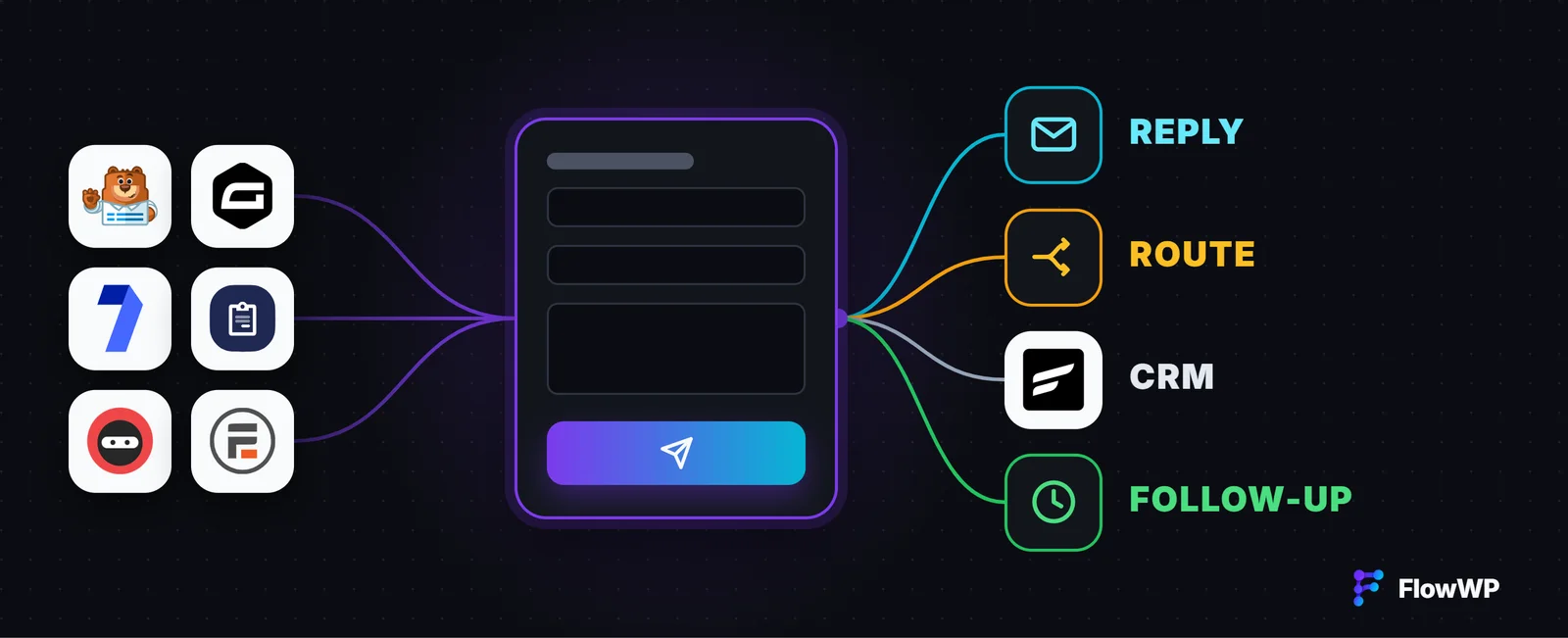
A form submission is where a visitor becomes a lead, a customer, a member or a support request. What happens next is usually manual: someone reads the email notification, copies the details into the CRM, forwards the message to whoever handles it and writes back. Each of those steps is a rule, which makes it something a workflow can do the moment the form is sent. This guide covers the six things worth automating first, with the plugins and plans each one needs.
Which form plugins work, and on which plan
FlowWP has a submission trigger for eight WordPress form plugins. Every answer in the form becomes a token that later steps can use — in an email, a CRM field or a Slack message.
- On every plan, Free included: Formidable Forms, Ninja Forms, Forminator and Elementor forms (Elementor’s trigger needs Elementor Pro’s Form widget).
- From Personal: WPForms and Contact Form 7.
- From Business: Gravity Forms and Fluent Forms.
Some plugins add more than a submission trigger. Contact Form 7 can also start a workflow once its notification email has gone out, or when it failed to send. Formidable Forms can react when a stored entry is edited. Gravity Forms has triggers for payments, edited, spam and deleted entries, and actions that create, update and submit entries.
1. Reply to the person who wrote
A form is submitted → send them a confirmation. A short, personal reply tells people their message arrived and when to expect an answer. Thank people for filling in a Ninja Forms form does exactly this with a single Send Email step addressed to the email field they filled in. Send Email is on every plan and goes out through your site’s own mailer, so if your site’s emails already reach inboxes, these will too.
2. Send each message to the right person
A form is submitted → decide who handles it → email them. The simplest version sends every entry to one person: Email your team about Elementor form leads includes the page the form was on, so whoever follows up knows the context.
When different requests need different people, add a Switch (Personal and above). Route Elementor leads to the right person saves every lead in FluentCRM and replies instantly, then sends pricing questions to sales, problems to support and everything else to a general inbox. If your form has no subject field to sort on, Sort enquiries with AI and send them to the right person has an AI step read each message and file it as a question, a complaint or a sales lead, using your own AI provider key.
3. Save every lead in your CRM
A form is submitted → add or update the contact. Copying form entries into a CRM by hand is where leads go missing. Save Contact Form 7 enquiries in FluentCRM turns each submission into a contact tagged Enquiry, using the name and email fields of Contact Form 7’s default form. FluentCRM matches contacts by email, so a second message from the same person updates their record instead of creating a duplicate, and someone who unsubscribed is not subscribed again.
On Groundhogg, Turn form messages into Groundhogg contacts also keeps the message itself as a note on the contact, so the next person who speaks to them can read it (Business).
4. Follow up if they go quiet
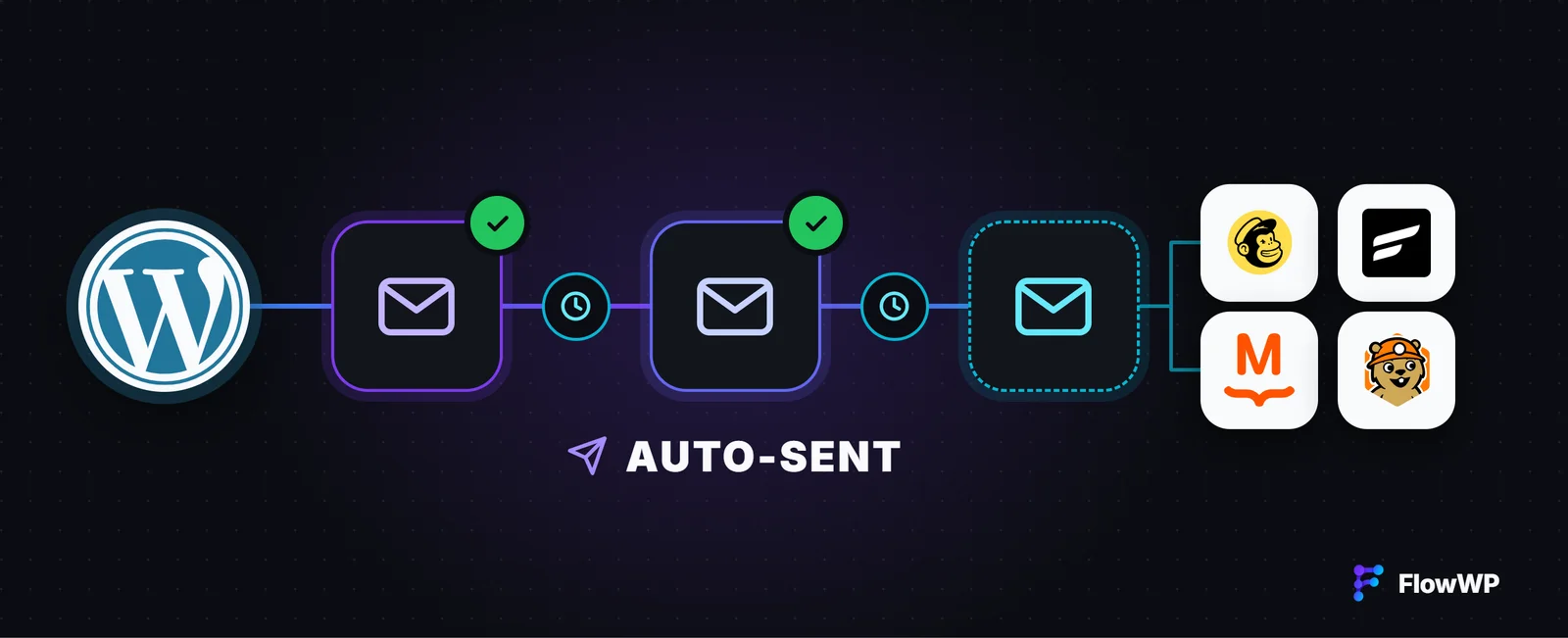
A form is submitted → confirm → wait two days → not a customer yet? → follow up. Follow up on Contact Form 7 enquiries saves the enquiry, confirms it, then waits with a Delay step. Two days later it checks whether the contact has been tagged a customer in FluentCRM, and only sends the follow-up if not. Delays (Personal and above) run in the background through Action Scheduler, so a workflow that is waiting holds nothing open on your server.
5. Turn a sign-up form into an account
A form is submitted → register a user. If you collect sign-ups with a form, the account can be created at the same moment. Formidable Forms, Ninja Forms and Forminator each have a Register a new user step (Personal), and Create accounts from a Forminator sign-up form creates an account for each submission — or uses the one that email address already has. On Gravity Forms with its User Registration add-on, a separate trigger runs when someone registers through a form, with both the new account and the form they filled in.
6. Make sure no submission is lost
A few safeguards are worth adding once the basics work:
- Stop entries that should go no further. Only continue if (every plan) ends the run quietly for entries without an email address, test submissions or anything else you name.
- Catch failed notifications. Contact Form 7’s email fails to send trigger runs when the form’s own notification could not be sent, so the message can be saved or forwarded another way instead of disappearing.
- Undo what spam set off. Gravity Forms can start a workflow when an entry is marked as spam, trashed or restored — useful for taking a spammer back off a mailing list.
- Check what happened. Every run is recorded in run history, with what each step received and returned, so “did that lead reach sales?” has an answer.
Before you switch it on
Press Test run to try a workflow with example data first: emails and CRM updates are rehearsed rather than sent, so nobody receives a test. Use the token picker to choose form fields rather than typing them — see tokens and data mapping — and conditions for If / Else, Switch and Only continue if.
For the whole picture — trigger, logic, actions and the plan each needs — see Automate form submissions, or browse the form templates in the template library.