How to Send WordPress Forms, Orders and Users to Google Sheets
Log WooCommerce orders, collect form entries and list new users in Google Sheets automatically, and keep one row per customer up to date.
6 min read



A Google Sheet is often the simplest way to share what happens on a WordPress site with someone who has no login to it: the accountant who wants every order, the volunteer coordinator who wants every sign-up, the manager who wants enquiries in one list. Copying rows in by hand works until the day someone forgets. This guide sends WooCommerce orders, form entries and new users to Google Sheets automatically with FlowWP, and keeps rows up to date when things change.
What the Google Sheets connection needs, and on which plan
- FlowWP Pro. Google Sheets is reached through a connection, and connections are part of FlowWP Pro. Add a row to a Google Sheet is on Personal and above. Find a row, Update a row and Add or update a row are on Business and above.
- Something to start the workflow. Any trigger can lead to a sheet. An order is paid (WooCommerce) and A user is created (WordPress) are on every plan. Form triggers depend on the plugin: Formidable Forms, Ninja Forms, Forminator and Elementor forms on every plan; WPForms and Contact Form 7 from Personal; Gravity Forms and Fluent Forms from Business.
- A Google account, to create the service account FlowWP writes through. It costs nothing.
Create a Google service account for FlowWP
FlowWP writes to Google Sheets through a service account: a Google account of its own, made for your site, that can open only the spreadsheets you share with it. You set it up once:
- At console.cloud.google.com, choose or create a project, open APIs & Services → Library, and enable the Google Sheets API.
- Open IAM & Admin → Service Accounts, create a service account named, say, FlowWP. It needs no roles.
- On its Keys tab, choose Add key → Create new key → JSON. A .json file downloads.
- In WordPress, go to FlowWP → Connections → Google Sheets, paste the whole contents of the file and click Check and save.
- In each spreadsheet a workflow should use, click Share and add the service account’s email address (shown on the saved connection) as Editor. A link anyone can view is not enough: it lets FlowWP read the sheet but not write to it.
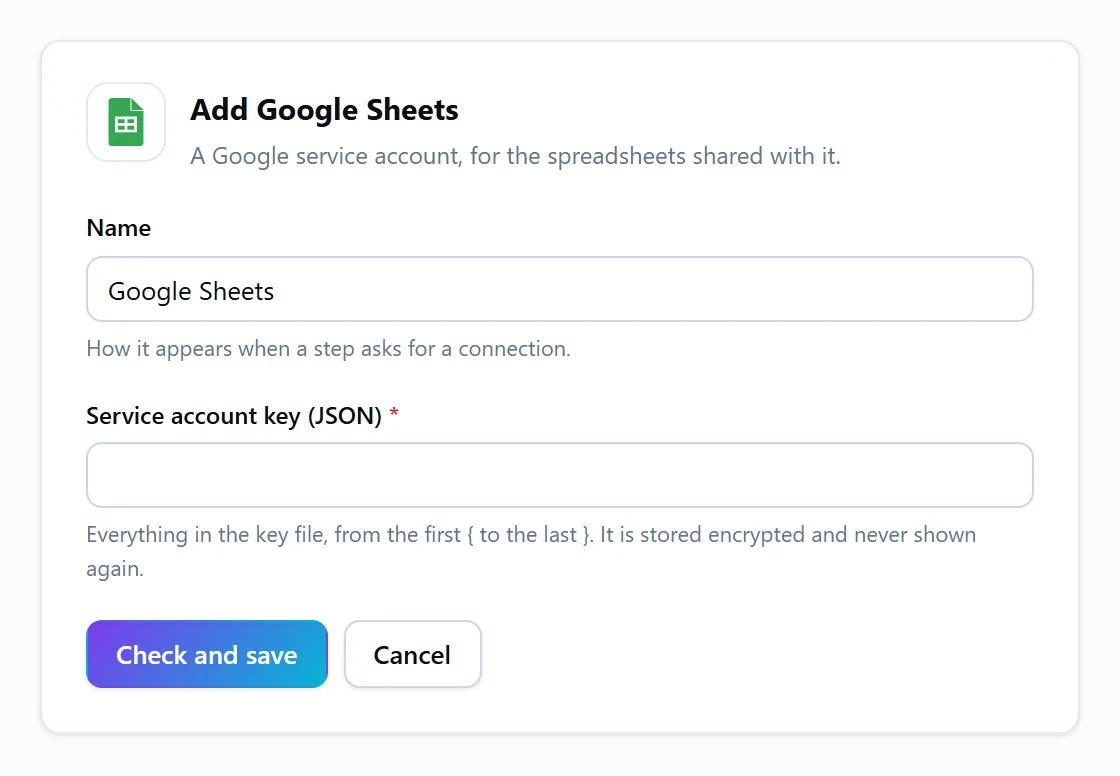
If Google says key creation is disabled, your organisation’s policy blocks it: ask its admin, or use a project in a personal Google account. The key is stored encrypted and never shown again. Every screen is described in Connect Google Sheets.
Log every WooCommerce order in a Google Sheet
An order is paid → add a row. The template Log WooCommerce orders in a Google Sheet (Personal) writes one row per paid order with eight columns: Order, Paid, Customer, Email, Products, Total, Currency and Payment. Point it at an empty tab and the first order writes the header row for you; there is nothing to set up in the sheet.
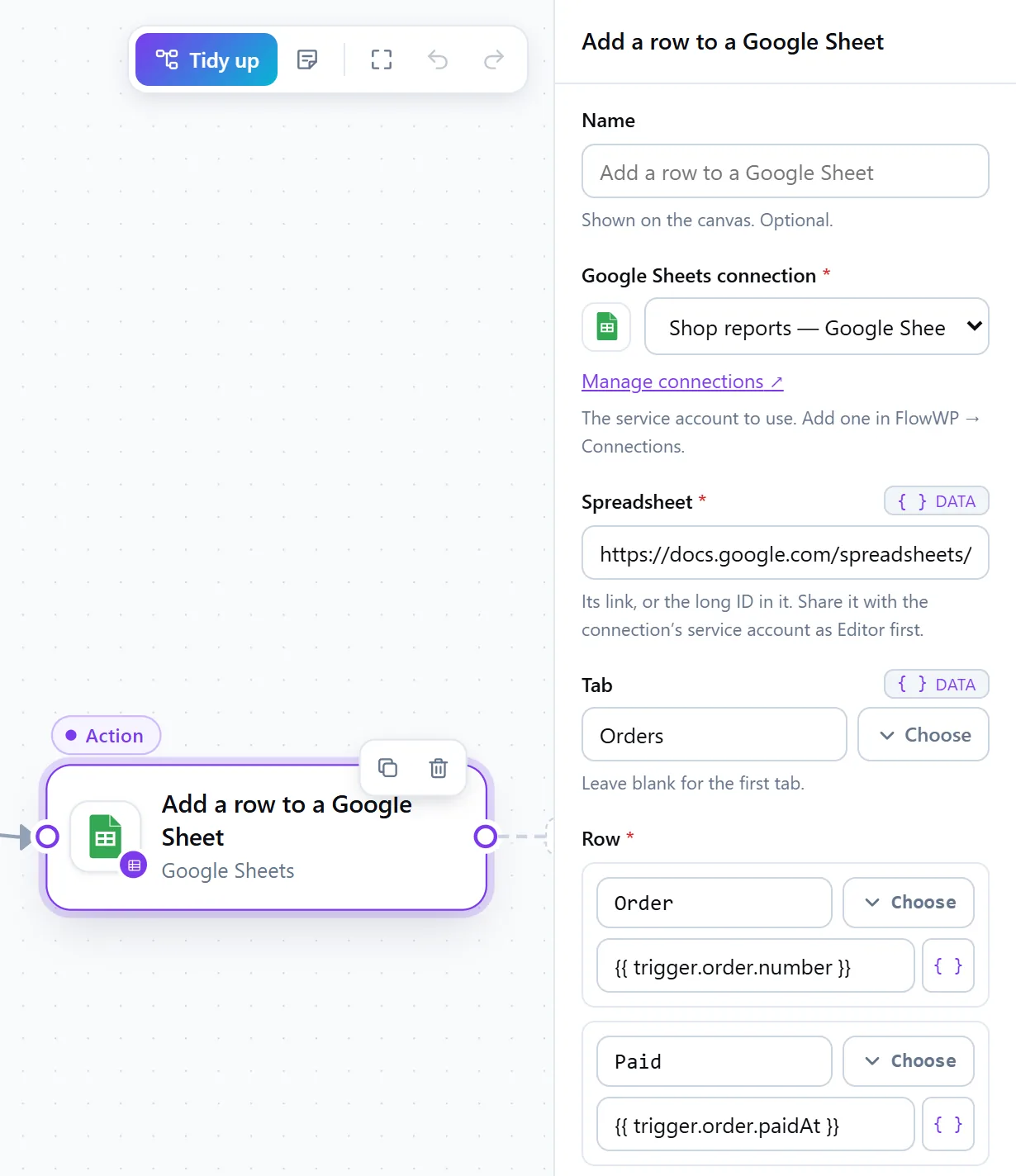
Totals are written as numbers, so a SUM column adds them up whatever language your spreadsheet is set to. Add your own columns — the shipping method, the coupon used, the order’s admin link — by naming the column and choosing the value from the token picker.
Collect WordPress form entries in a Google Sheet
A form is submitted → add a row. Collect Contact Form 7 entries in a Google Sheet (Personal) adds a row for each submission with when it came in, which form it came from, and the name, email, subject and message. It uses the field names of Contact Form 7’s default form; if yours are different, pick your fields from the token picker instead.
The same workflow works with every form plugin FlowWP supports. Each form trigger passes on the form’s name, the email address that was entered, the time and every field, and has two settings worth knowing:
- Form ID — leave it blank to run for every form, or choose one form, so the contact form and the job application form fill different sheets.
- Only when a field has a value — for example, only the entries that ticked “Send me the brochure”.
The plan for a form-to-sheet workflow is the higher of the two steps’: Personal for WPForms, Contact Form 7, Formidable Forms, Ninja Forms, Forminator and Elementor forms, and Business for Gravity Forms and Fluent Forms.
List new WordPress users for someone without a login
A user is created → add a row. List new WordPress users in a Google Sheet (Personal) writes when they joined, their name, username, email and role. For a membership site or a course, swap the trigger for the moment that matters to you — a new MemberPress membership, an enrolment in LearnDash — and keep the same row.
Keep one row per customer up to date
An order is paid → add or update the customer’s row. Adding a row for every event gives you a log. For a list instead — one row per customer, one per member — use Add or update a row in a Google Sheet (Business): it looks for a row with the value you name in a column, such as the customer’s email, updates it if there is one and adds one if not.
An order is paid passes on the customer’s history, so the row can hold their lifetime spend and the number of orders they have placed, rewritten after each order. Only the columns you name are changed: notes and formulas your team added in other columns stay where they are.
Find a row (Business) reports whether it found one, so the steps after it can branch: an existing customer gets one message, a new one another.
What FlowWP takes care of in your Google Sheet
- Form input is never run as a formula. A value that starts like a formula is written as text, so a sheet never runs what someone typed into a form.
- Numbers stay numbers, and phone numbers keep their leading zero.
- No duplicate rows after a timeout. If Google is slow to answer, FlowWP does not send the row again, so a slow response cannot add it twice.
- Columns are checked. A column the sheet does not have is refused, and the error lists the columns it does have.
When a step does run, FlowWP uses your service account key to get an access token from Google, then sends the rows it writes or looks up to the Google Sheets API.
Test the Google Sheets workflow, then switch it on
Press Test run to try the workflow with example data. Adding and updating rows are rehearsed: the step reports the row it would have written, and your sheet stays as it is. Looking rows up runs for real, so a Find a row step shows what it would find. When it looks right, activate the workflow and submit a form or place an order to see the first row arrive. If a step cannot write to the sheet, check that the spreadsheet is shared with the service account as Editor.
Every Google Sheets step, with its plan, is on the Google Sheets integration page, and the plugins that can send to it are under works with.