How to Send WooCommerce Orders to Slack
Connect WooCommerce to Slack: set up a Slack app once, post paid orders to a channel, flag failed payments and give large orders their own channel.
6 min read



Most shops hear about new orders through an email that lands in one person’s inbox, between newsletters and receipts. A message in a Slack channel is seen by the whole team at once, links straight to the order, and can name the person who should act on it. This guide connects WooCommerce to Slack with FlowWP: what you need, the Slack app to set up once, and the order workflows worth starting with.
What the WooCommerce to Slack connection needs
- FlowWP Pro on the Personal plan or above. Slack is reached through a connection, and connections are part of FlowWP Pro: the free plugin from WordPress.org contacts no outside service. Send a Slack message is on Personal. Direct messages, finding a Slack user, creating channels and adding people to them are on Business. See pricing.
- WooCommerce on your site. An order is placed, An order is paid and An order reaches a status are on every plan; refunds, failed payments, specific products, order totals, coupons, reviews and stock changes are from Personal. Every WooCommerce trigger passes the order on, so a Slack message can use its number, total, customer, products and links.
- A Slack app with a bot token, made once for your workspace. The next section shows how.
Create the Slack app and connect it to FlowWP
- At api.slack.com/apps, choose Create New App → From scratch, name it (for example “Shop orders”) and pick your workspace.
- Open OAuth & Permissions and, under Bot Token Scopes, add
chat:write. Addusers:read.emailtoo if you will send direct messages or look people up by email address. - Install the app to your workspace from the same page, then copy the Bot User OAuth Token. It starts with
xoxb-. - In WordPress, go to FlowWP → Connections, add a Slack connection and paste the token as its bot token. FlowWP checks it with Slack when you save.
- In Slack, open the channel the orders should go to and type
/invitefollowed by your app’s name. An app can only post in channels it has been added to.
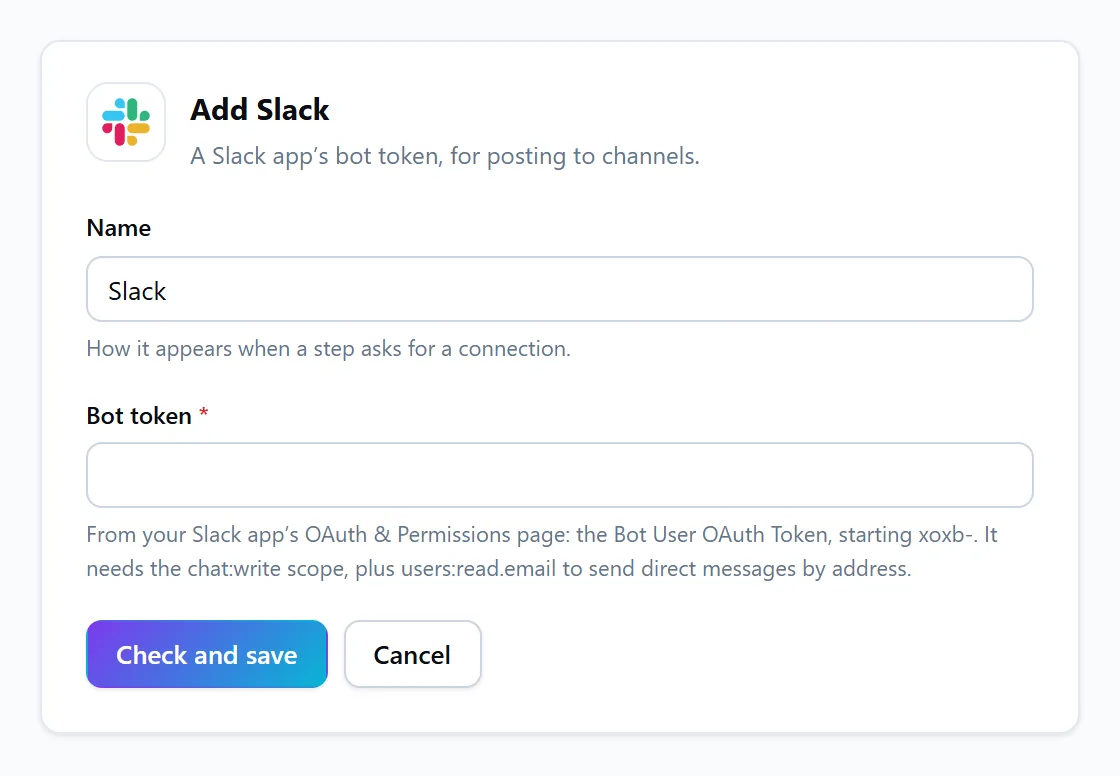
The token is stored encrypted and never shown again; workflows keep only the connection’s ID, so exporting a workflow never exports the token. When a Slack step runs, FlowWP sends the token and the message, or the lookup, to Slack’s API. More in Connections.
Post every paid order to a Slack channel
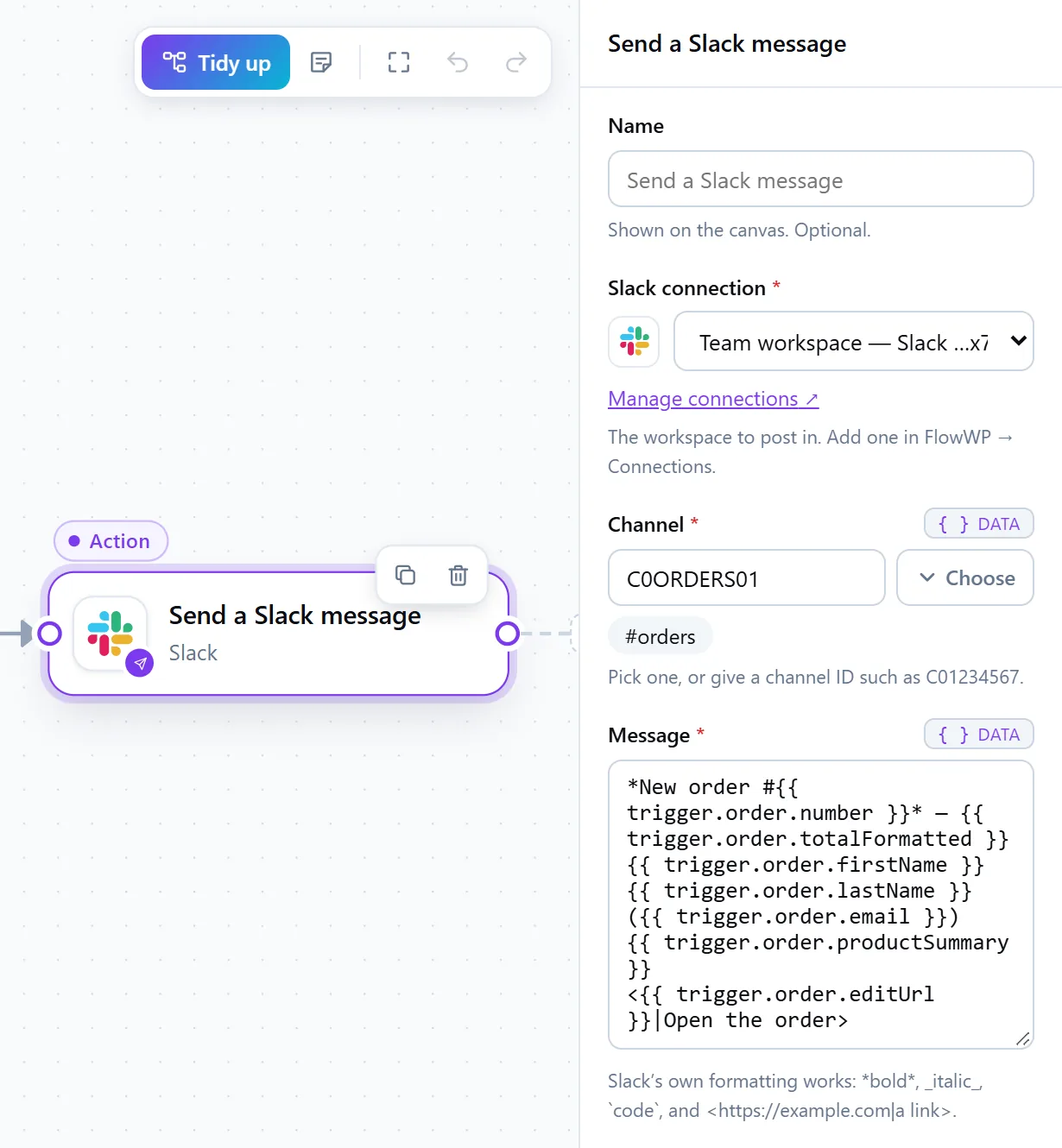
An order is paid → send a Slack message. The template Tell the team about every order in Slack (Personal) asks for two things, the workspace and the channel, and posts this for each order:
*New order #{{ trigger.order.number }}* — {{ trigger.order.totalFormatted }}
{{ trigger.order.firstName }} {{ trigger.order.lastName }} ({{ trigger.order.email }})
{{ trigger.order.productSummary }}
<{{ trigger.order.editUrl }}|Open the order>
The words in double braces are tokens: when the workflow runs, each becomes that order’s value. You pick them from the token picker rather than typing them (see tokens and data mapping). Slack’s own formatting works in the message: *bold*, _italic_, `code` and <https://example.com|a link>. The template switches Show link previews off, so each order stays a short message instead of unrolling the link to your admin.
Use An order is paid rather than An order is placed for this: placed runs as soon as the order exists, before the payment is confirmed, so it also announces orders that never get paid.
Only message Slack about the orders that need someone
A channel that announces every order of a busy shop soon stops being read. Three ways to keep it to the orders that matter:
- Filter with Only continue if (every plan): continue only when the total is greater than an amount, the customer is a guest, or the order used a coupon. Orders that do not qualify end quietly; the run is not counted as failed.
- Start from a narrower trigger (Personal): An order total passes an amount, A user purchases a specific product, …a product in a category or An order uses a specific coupon.
- Route with a Switch (Personal): large orders to #sales, wholesale orders to #wholesale, everything else to #orders — one Send a Slack message step per route.
Tell the right person when a payment fails
A payment fails → find the person in Slack → post with an @mention. Name the person who should chase a failed payment (Business) looks up whoever handles payments by their Slack email address and mentions them in the message, so chasing it is someone’s job rather than everyone’s. Finding a user needs the users:read.email scope from step 2 above. To write to that person privately instead, use Send a Slack direct message (Business), which also finds them by email address.
Give large orders a Slack channel of their own
An order is paid → create a channel → add people → post the details. For custom work, events or wholesale, where each order means a conversation, Give every order its own Slack channel (Business) opens a channel named after the order, adds your team by email address and posts the order as its first message. A few things Slack decides:
- Channel names are lowercase, up to 80 characters, with hyphens instead of spaces; Slack converts the name for you.
- Slack will not create a second channel with a name that exists, archived ones included — naming the channel after the order number keeps every name new.
- A private channel cannot be made public later.
- Adding people only works for people already in the workspace; it does not invite anyone to Slack.
Creating channels needs more than chat:write. If the app is missing a permission, the step’s error names the scope to add; add it under OAuth & Permissions and reinstall the app.
Keep follow-ups in the order’s Slack thread
Send a Slack message returns the message’s ID. A later Slack step in the same workflow can put that ID in Reply to, and its message lands in the first message’s thread. Post a one-line summary to the channel, and the shipping address, the order notes or an AI-written summary as a reply: the channel stays one line per order, and the detail is a click away.
More WooCommerce events worth a Slack message
- A product runs low on stock or A product’s stock status changes — out of stock, restocked or on backorder — to whoever reorders (Personal).
- An order is refunded, for the team that tracks returns (Personal).
- A user reviews a product, so a bad review gets an answer the same day (Personal).
- A customer’s lifetime spend passes an amount, to welcome a new VIP personally (Personal).
The same Slack app works for all of them; Discord, Telegram and WhatsApp messages are separate steps with their own connections. Every pairing, with the plan it needs, is listed under WooCommerce: works with.
Test the WooCommerce to Slack workflow before it goes live
Press Test run in the editor. FlowWP runs the workflow with example order data and shows what every step received and returned. Steps that change something are rehearsed, so Send a Slack message reports the message it would have posted without posting it — you can check the tokens without a test message in your channel. To see a real message, activate the workflow and place an order yourself.
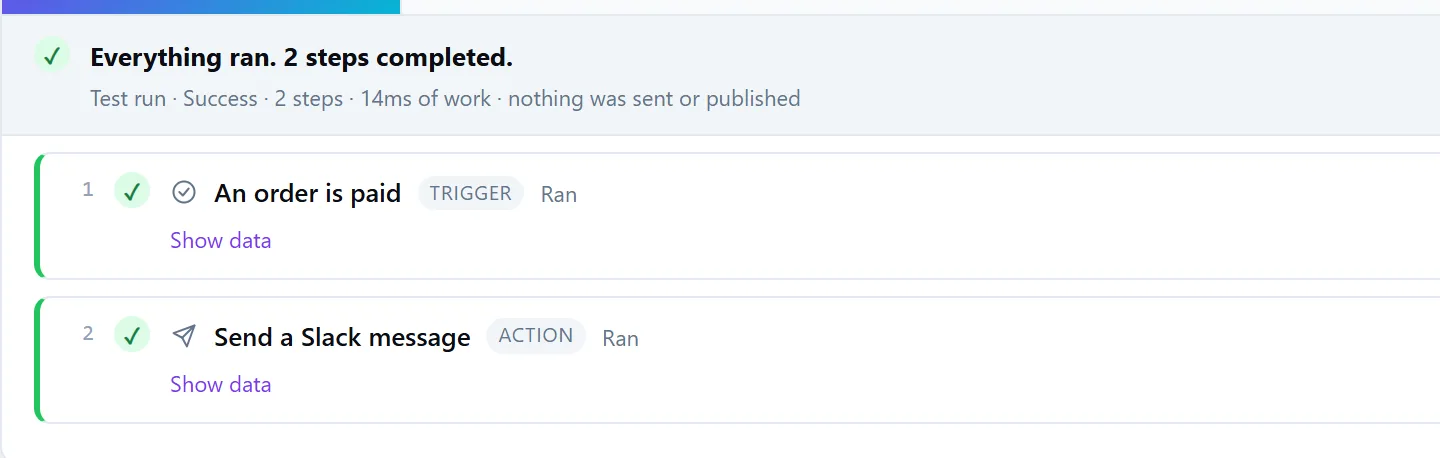
Once it is live, every run is recorded in run history. When Slack refuses something, the error says why in plain words — the app is not in that channel, the token was revoked, a scope is missing — and which step it was. Slack steps are not retried automatically: a message cannot be unsent, and a retry after a timeout that did get through would post it twice.
Not on FlowWP Pro? On the free plugin, An order is paid and Send Email are both available, so the team can still hear about orders by email. The Slack integration page lists every Slack step with its plan.