Slack Notifications for WPForms, Gravity Forms and More
Post WPForms, Gravity Forms, Contact Form 7 and five more form plugins to Slack, route each entry to the right channel, and keep it in your CRM too.
5 min read



A form’s notification email goes to one inbox, and whoever owns that inbox decides when the rest of the team hears about it. Posting each entry to a Slack channel puts a sales enquiry, a support request or a job application in front of the people who handle it the moment it arrives. This guide sends WPForms, Gravity Forms and six other WordPress form plugins to Slack with FlowWP, routes entries to the right channel, and keeps them somewhere besides Slack.
Which WordPress form plugins can post to Slack, and on which plan
Slack is part of FlowWP Pro, and Send a Slack message is on the Personal plan. A form-to-Slack workflow needs the higher of the two steps’ plans:
- Personal: WPForms, Contact Form 7, Formidable Forms, Ninja Forms, Forminator and Elementor forms (Elementor’s trigger needs Elementor Pro’s Form widget).
- Business: Gravity Forms and Fluent Forms, whose triggers are on Business.
Direct messages and looking people up in Slack are on Business, whichever form plugin you use. Each integration page lists its steps with their plans, and pairs it with Slack under “Works with”.
Connect Slack to WordPress once
FlowWP posts as a Slack app of your own. Create it at api.slack.com/apps, give its bot token the chat:write scope, install it to your workspace, and paste its xoxb- bot token into FlowWP → Connections → Slack. Then type /invite and the app’s name in each channel it should post in. The steps are spelled out in How to Send WooCommerce Orders to Slack, and the same connection serves every workflow on the site.
Build the form-to-Slack workflow
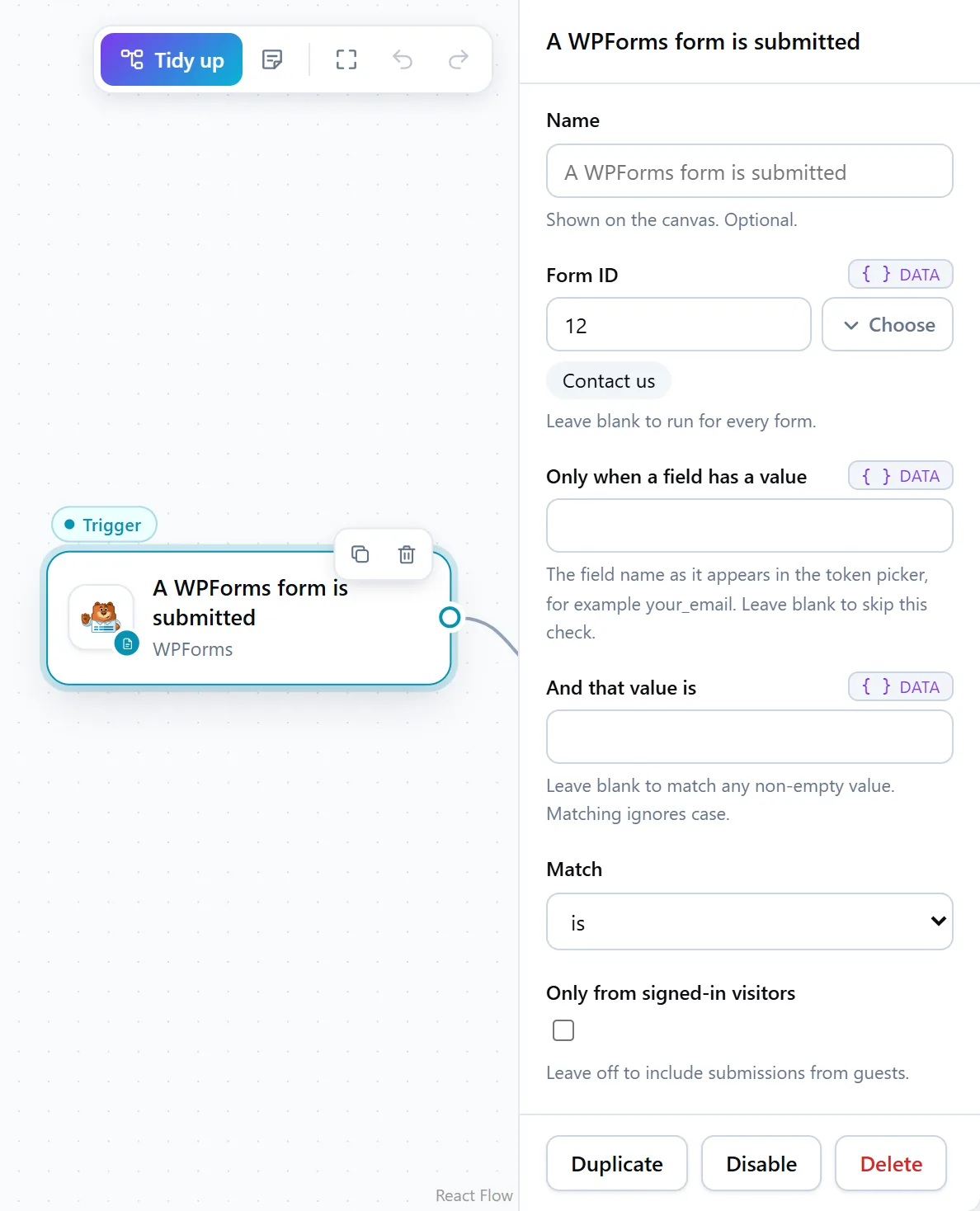
- Add the form trigger, such as A WPForms form is submitted or A Gravity Forms form is submitted. Choose the form under Form ID, or leave it blank to run for every form on the site.
- Add Send a Slack message, choose the Slack connection and pick the channel.
- Write the message with tokens for what was submitted. Every form trigger passes on the form’s name, the email address that was entered, the time and each field, so a message can read:
*New enquiry from {{ trigger.form.title }}*
From: {{ trigger.email }}
Received: {{ trigger.submittedAt }} (UTC)
Add the fields you need — name, phone, message — from the token picker; field names come from your form, so pick them rather than typing them (see tokens and data mapping). Slack’s formatting works in the message: *bold*, _italic_ and <https://example.com|links>. Switch Show link previews off to keep each entry compact.
Send each form entry to the right Slack channel
- One workflow per form. With Form ID set, the contact form posts to #enquiries and the job application to #hiring.
- A filter on the trigger. Only when a field has a value runs the workflow only when a field holds what you name — only the enquiries that chose “Sales”, for example.
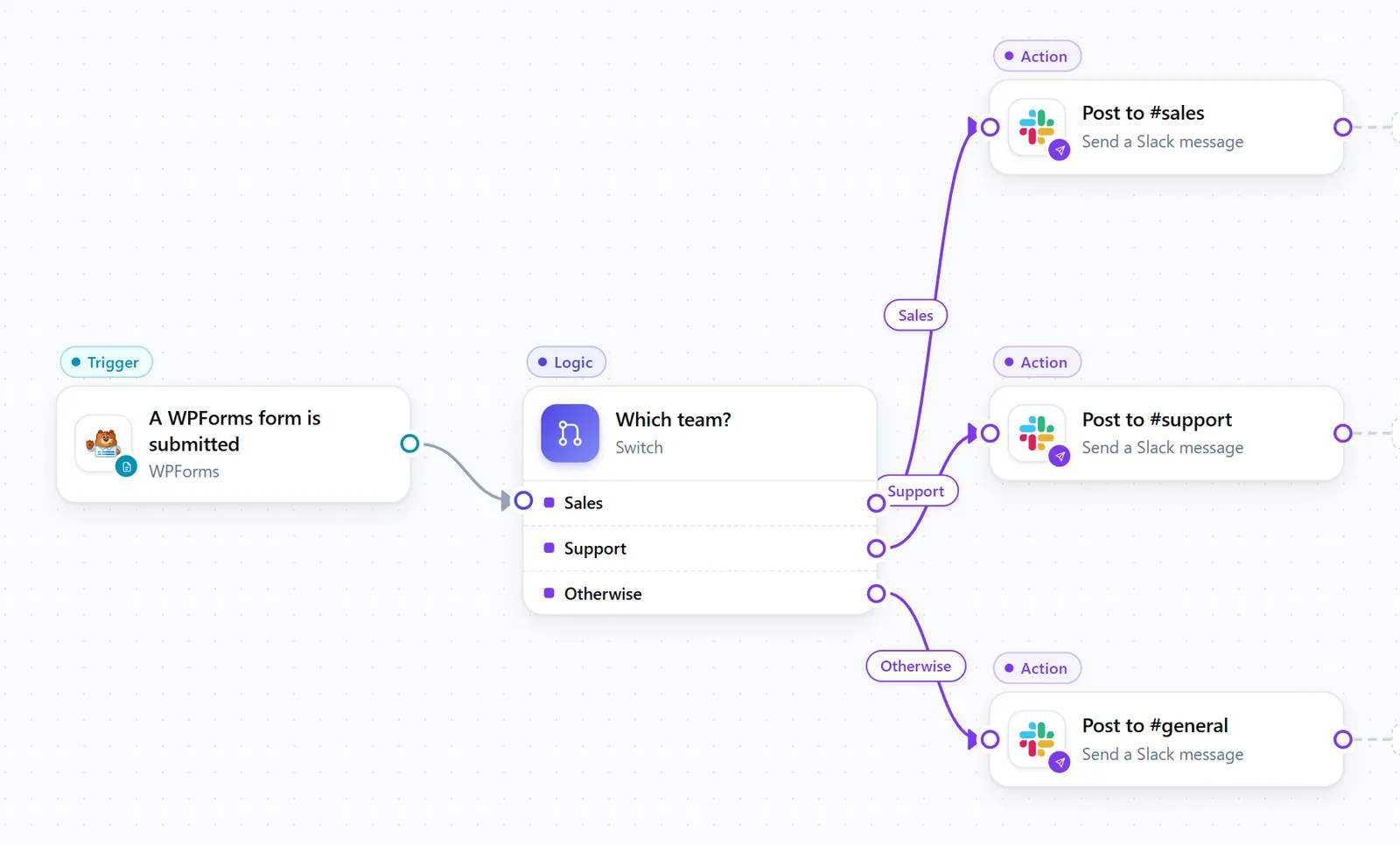
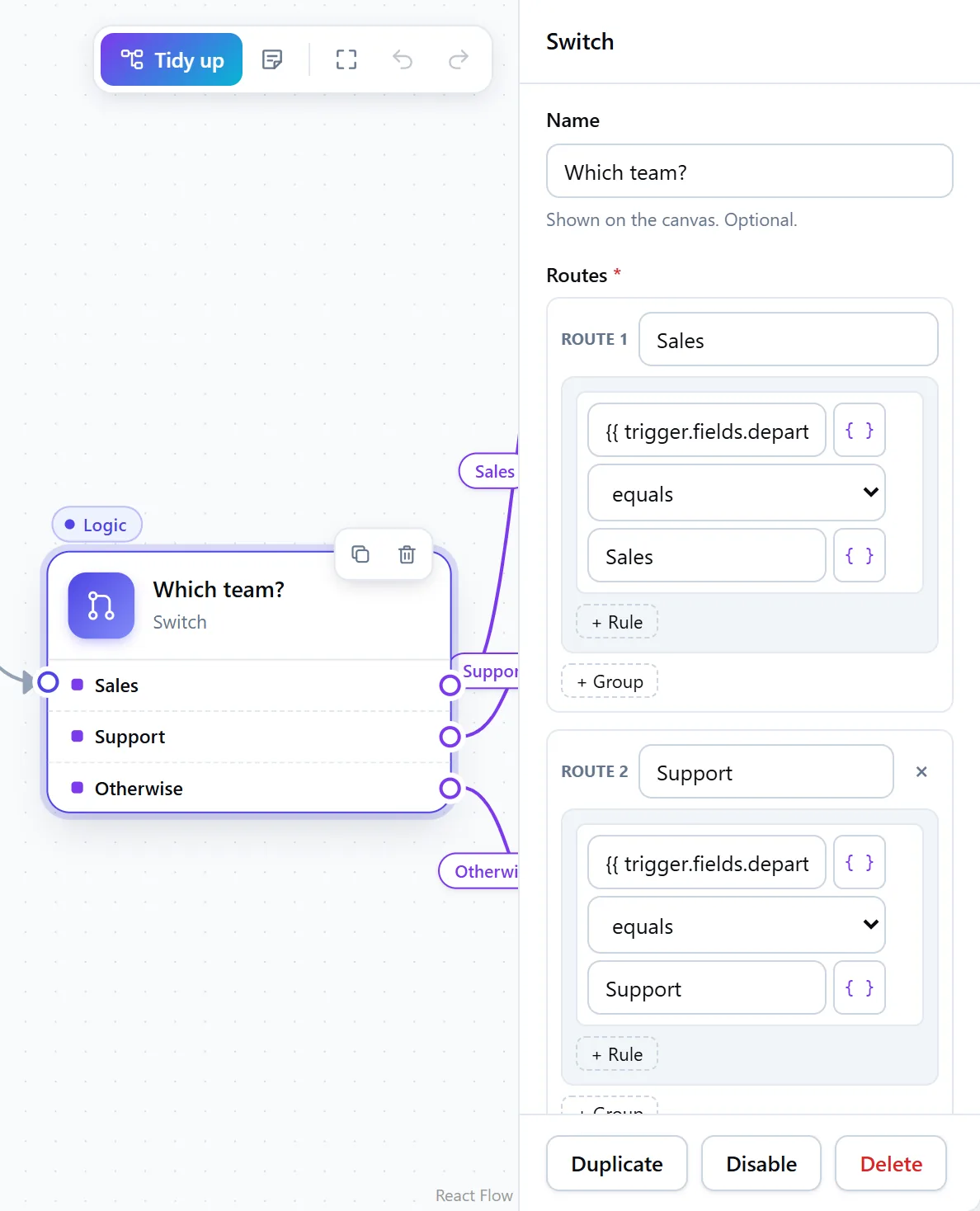
- A Switch on a field (Personal): sales questions to #sales, problems to #support, everything else to #general, from one workflow. Each route names its output on the canvas.
- Only continue if (every plan) ends the run quietly for entries you never want in Slack, such as ones without an email address.
When a form has no field to sort on, an AI step can read the message and say whether it is a question, a complaint or a sales lead, using your own Anthropic, OpenAI or Google key; Sort enquiries with AI and send them to the right person shows the pattern with email.
Message one person in Slack, or reply in a thread
Send a Slack direct message (Business) writes to one person by their Slack email address — the person on support duty this week, or the salesperson for a region. It needs the app’s users:read.email scope. Within a workflow, a second Slack step can also reply in the first message’s thread: post a one-line summary to the channel, and the full message underneath, so the channel stays readable.
Keep form entries somewhere besides Slack
A Slack channel is a good place to hear about an entry and a poor place to keep it: messages scroll away, and a contact in Slack is not a contact in your CRM. Add a second action to the same workflow:
- Your CRM. Save Contact Form 7 enquiries in FluentCRM turns each entry into a tagged contact; Groundhogg, HubSpot and Mailchimp have steps too.
- A Google Sheet, one row per entry, for people without a login to your site. See How to Send WordPress Forms, Orders and Users to Google Sheets.
- A reply to the person who wrote, with Send Email (every plan).
Test your Slack form alerts before you rely on them
Press Test run to run the workflow with example form data. Send a Slack message is rehearsed: it reports the message it would have posted, so you can check every token without posting to the channel. Then activate the workflow and fill in the real form once.
Every run is recorded in run history, with what each step received and returned, so “did that enquiry reach Slack?” has an answer. If Slack refuses a message, the error says why — usually that the app is not in the channel yet, which /invite fixes. On Contact Form 7, A Contact Form 7 email fails to send (Personal) is worth a workflow of its own: it posts to Slack when the form’s notification email could not be sent, so that entry is not lost.
More ideas for forms — replies, routing, CRM and follow-ups — are in How to Automate WordPress Forms.